¶ DataWedge Setup
DataWedge can instantly turn captured data into keystrokes, allowing workers to scan barcodes and send data directly to your application. DataWedge provides barcode scanning and processing services for Zebra devices running Android. Included with every Zebra device, DataWedge enables all apps on the device (whether stock or added later) to acquire scanned data without using scanner APIs directly.
1. Swipe up from the bottom of the screen to open the app/search bar, and search for DataWedge;
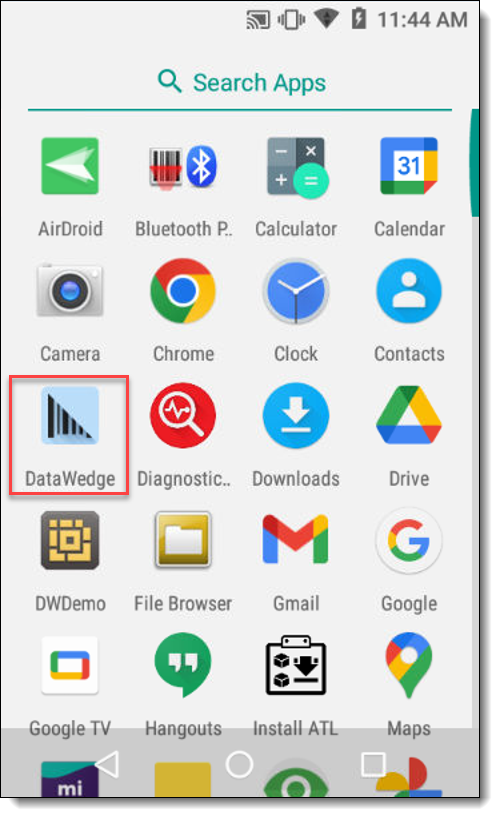
2. Open the DataWedge application;
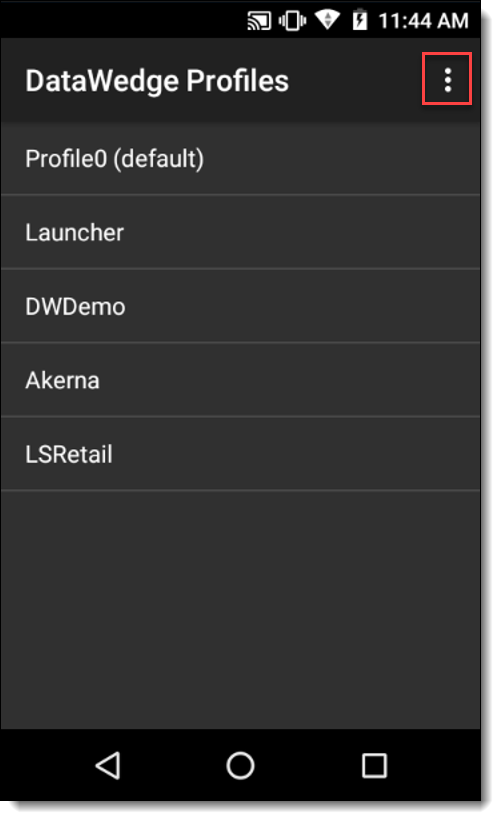
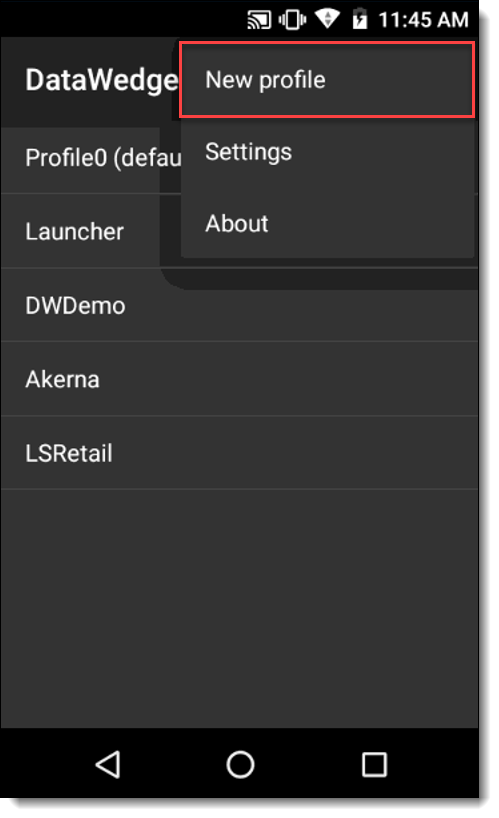
3. Select the 3 dots (⋮) icon to open up additional settings:
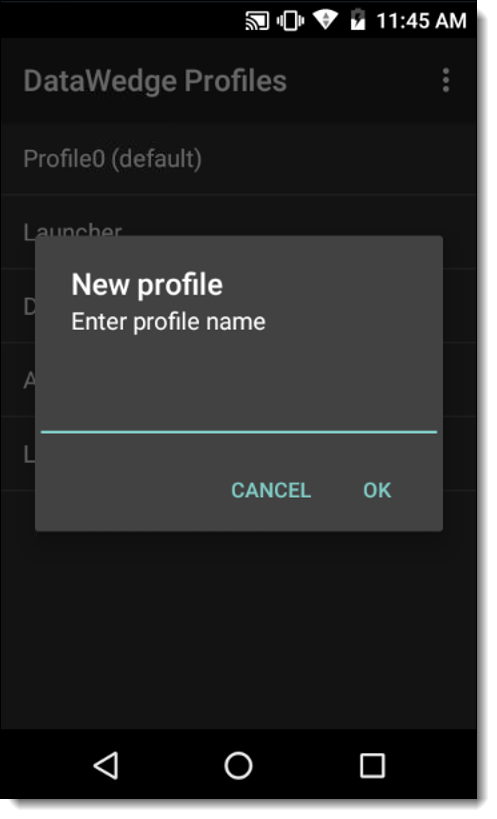
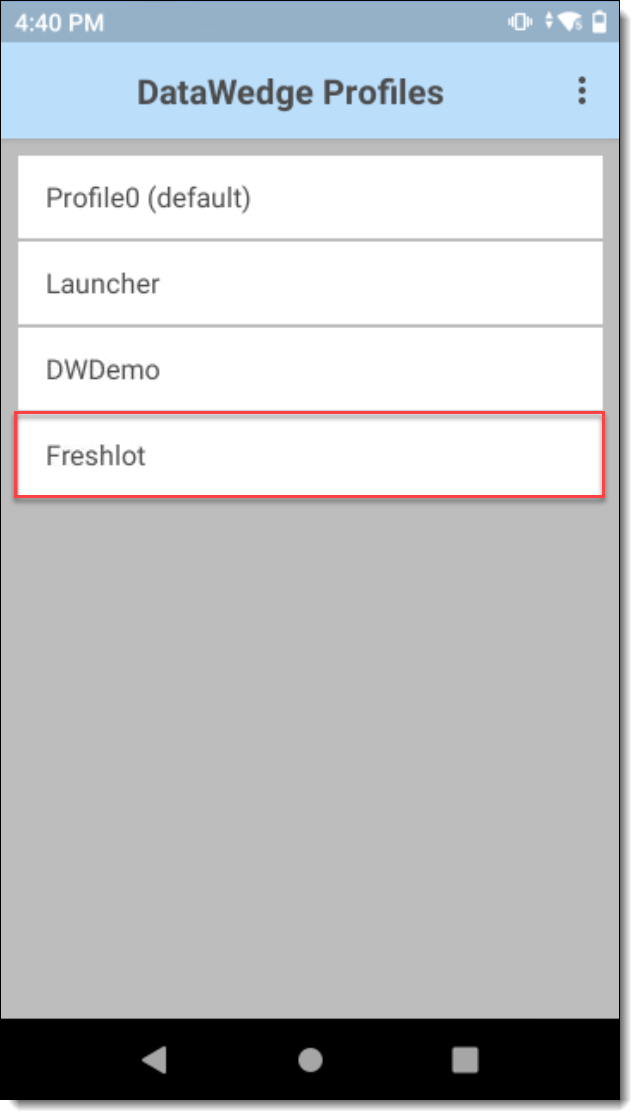
4. Create new profile named “Freshlot”;
5. Select newly created profile “Freshlot”;
6. Select Associated apps under Applications;
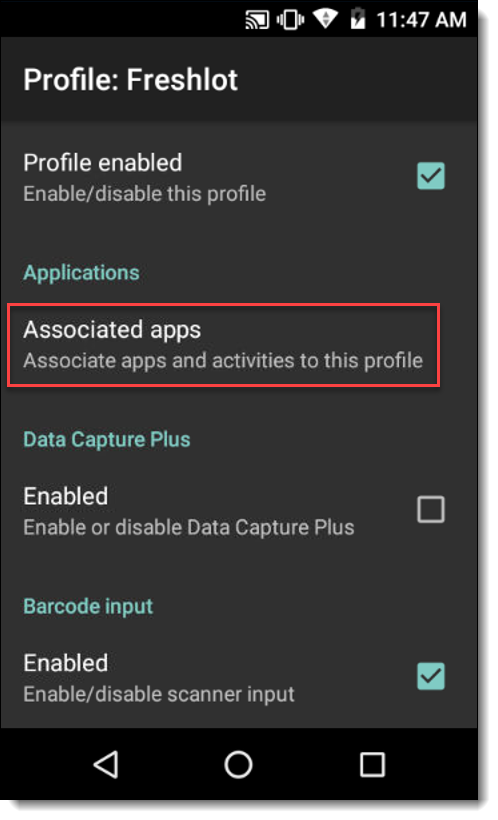
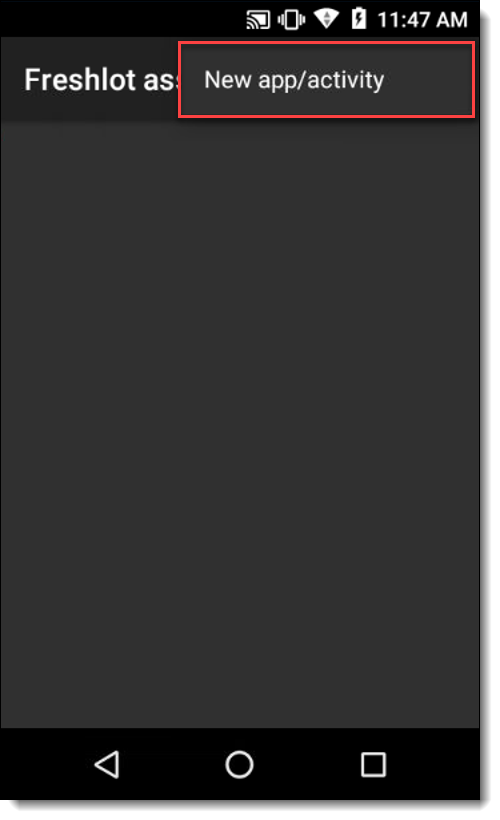
7. Select the 3 dots (⋮) icon in the top-right corner & then New app/activity;
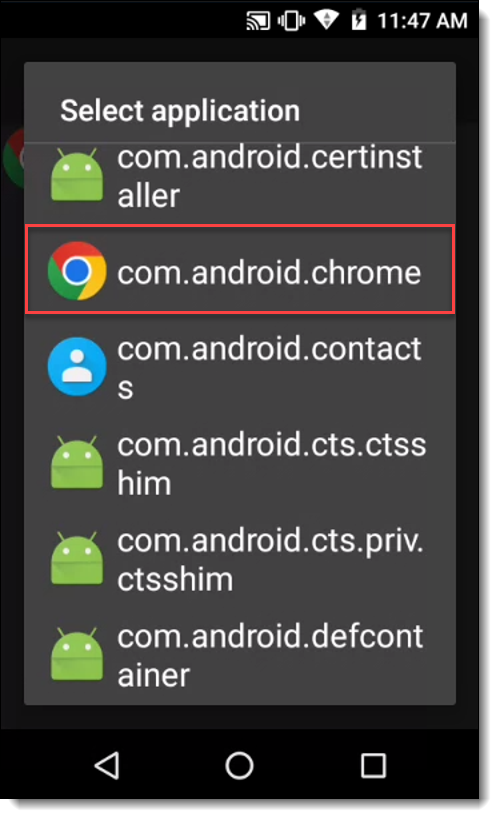
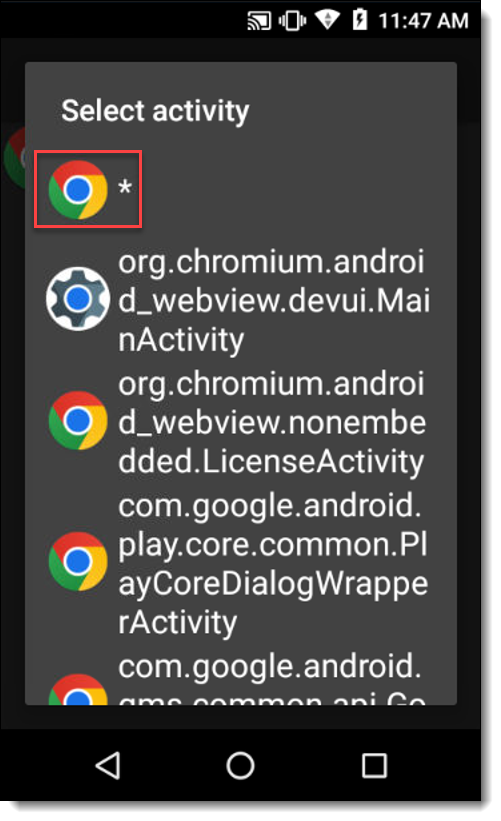
8. Find the Google Chrome Icon in the list of applications and then from the list of activies select the asterisk (*);
9. Navigate back to the Profile settings;
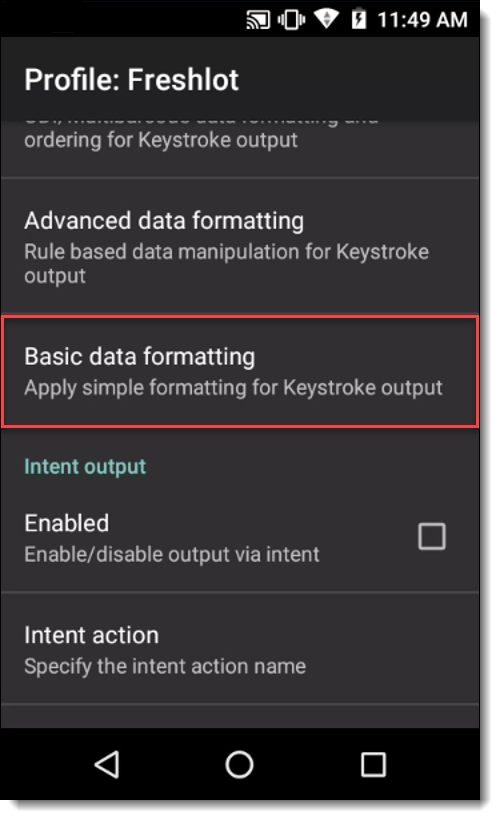
10. Scroll down and select Basic Data Formatting under the "Keystroke Output” section;
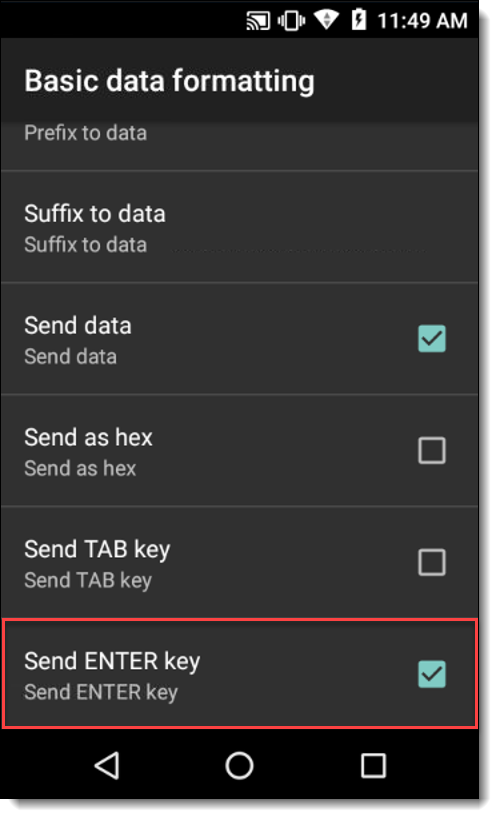
11. In Basic Data Formatting, check the box Send ENTER Key and make sure that Basic data formatting is enabled;
12. Navigate back to the Profile selection screen and select Profile0 (default);

13. Scroll down and select Basic Data Formatting under the "Keystroke Output” section;

14. In Basic Data Formatting, check the box Send ENTER Key and make sure that Basic data formatting is enabled;
15. Go back to the home screen.
¶ Create Freshlot Applet
1. Go to the Google Chrome application;
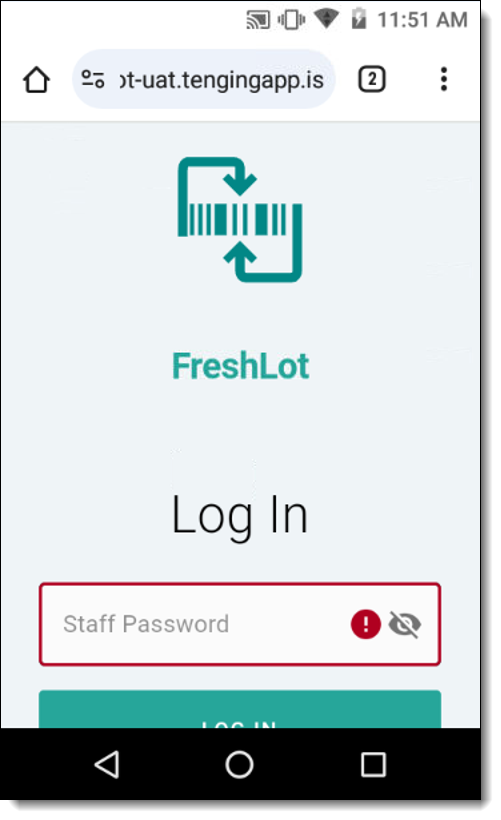
2. Navigate to ADD LINK
3. Select the 3 dots (⋮) icon in the top-right corner & then scroll down to Add to Home screen;
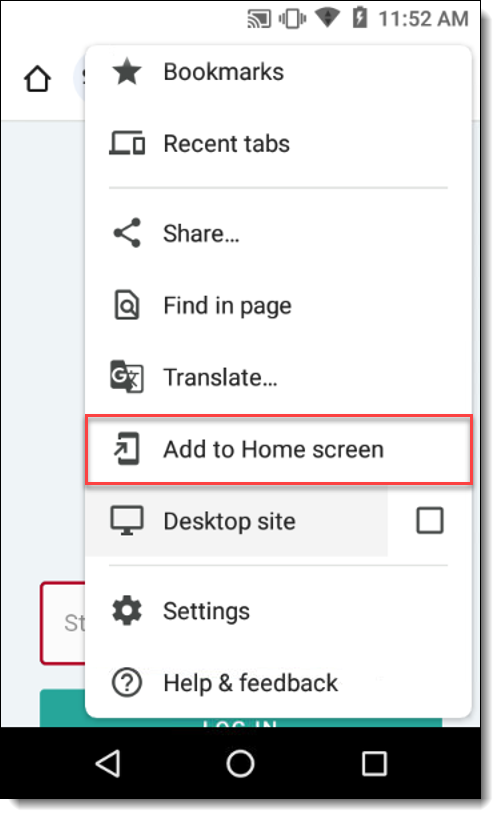
4. Select add to home screen;
5. Name the applet “Freshlot”;
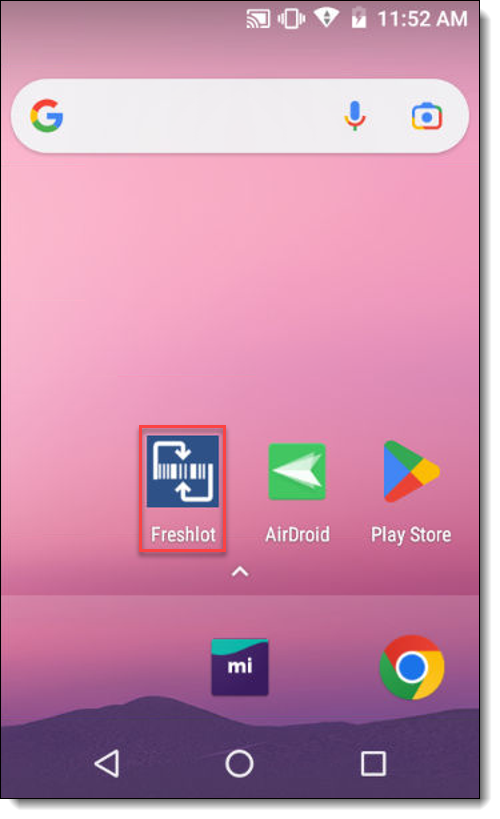
6. Open the application and login for the first time. If the browser suggests to save this password:
6.1. Select the cog (⚙) icon from the password suggestion dropdown;
6.2. "Save password for this website" → Never.
¶ Disable Keyboard Input
Method 1:
1. Settings (⚙) → Apps → Gboard → Press Disable.
Method 2:
1. Navigate to Settings (⚙);
2. Tap on Language & Input;
3. Select Virtual keyboard;
4. At the bottom of the list of keyboards, find the + Manage keyboards button. Tap this button to open a new menu screen;
5. Each keyboard in the list will have a toggle button next to it. To disable a keyboard, tap the button so that it switches to the off position. The button should turn from blue to grey when you turn the keyboard off.
¶ Enable Reading Interleaved 2 of 5 (ITF)
This section of the article provides the steps to enable the mobile computer to read Interleaved 2 of 5 (ITF) barcodes. By default, DataWedge will only decode Interleaved 2 of 5 (ITF) barcodes that are 14 characters long.
Solution:
1. Ensure the ITF is enabled;
2. Open DataWedge;
3. Open the default profile (Profile0);
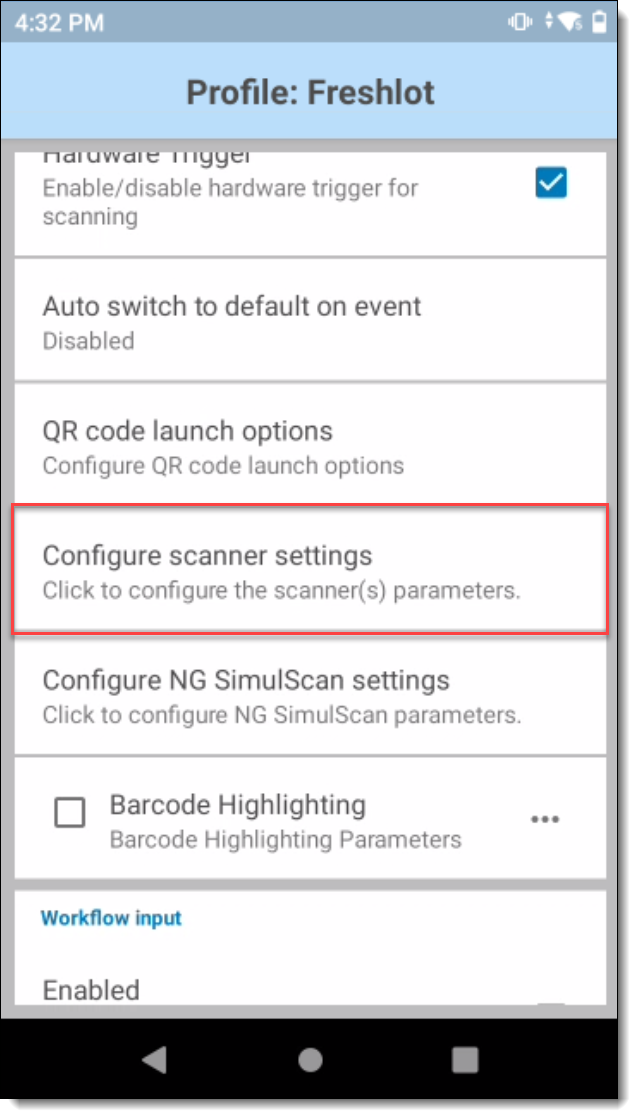
4. Scroll down and open Configure scanner settings;
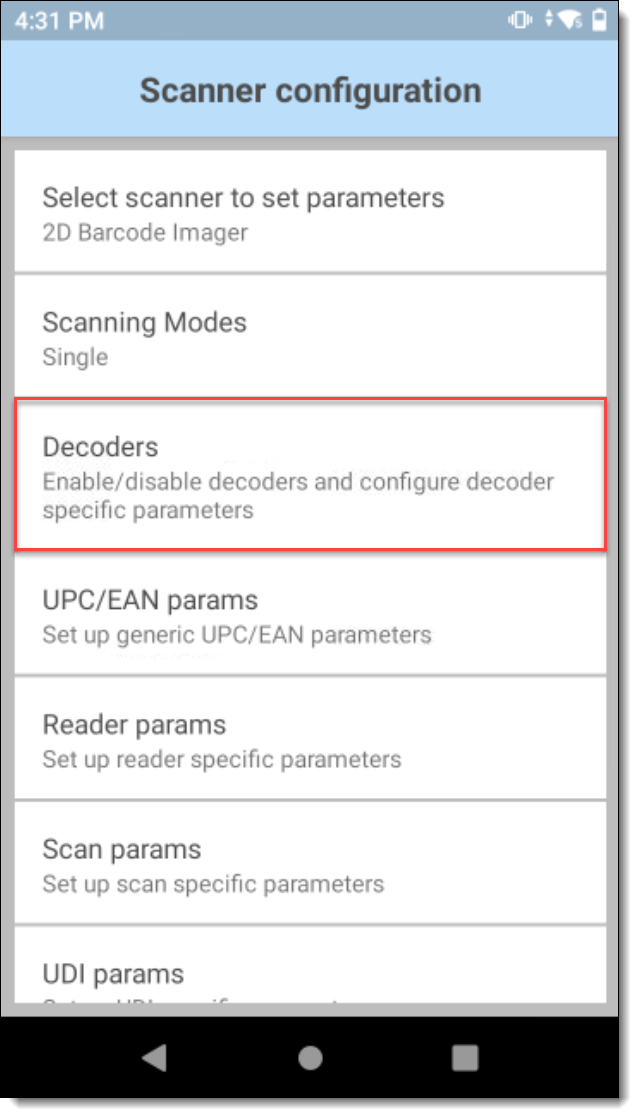
5. Tap Decoders;
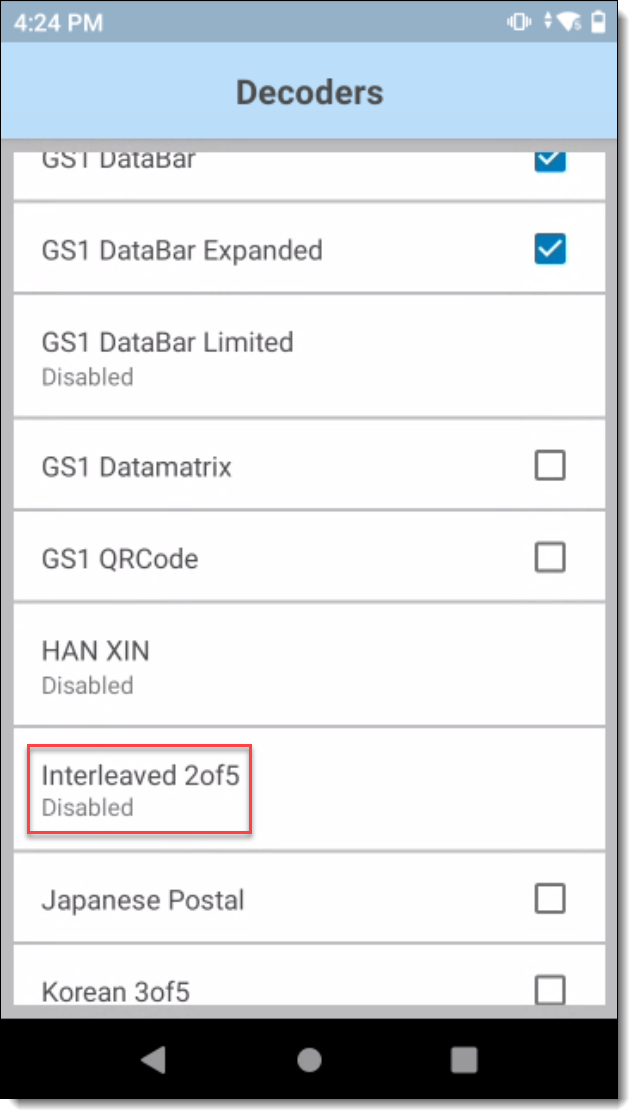
6. Tap on the checkbox to enable the Interleaved 2of5;
7. Modify Decode Length if needed;
8. Open Target profile;
9. Open Configure scanner settings;
10. Tap Decoders;
11. Tap Interleaved 2of5 to enable it;
12. Tap Length1 or Length2 to modify its value.
About Decode Lengths:
Variable-length
- Decode symbols containing any number of characters:
- Set both Length1 and Length2 to "0" (zero)
Range
- Decode a symbol with a specific length range from a-b (inclusive):
- Set Length1 to "a" (the lower bound) and set Length2 to "b" (the upper bound)
Two Discrete Lengths
- Decode only symbols containing either of two specific lengths:
- Set Length2 as the shorter length and Length1 as the longer one
One Discrete Length
- Decode only symbols containing a specific length:
- Set both Length1 and Length2 to the desired (non-zero) length