¶ Dashboard functions
1. By navigating to the Freshlot login screen, the user will find the Staff Password field, and a Log In button.
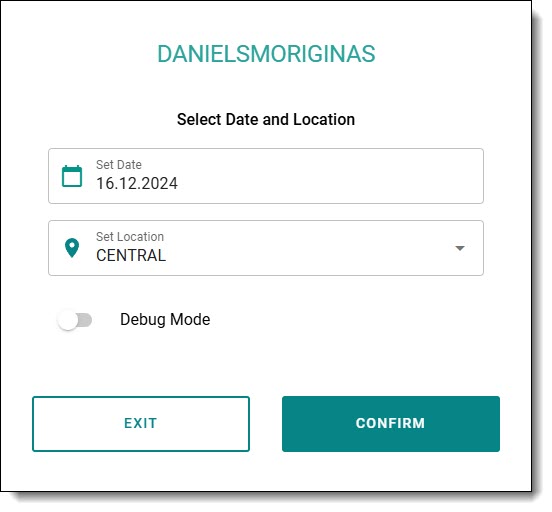
2. After the user enters their staff password, they will be prompted to select the appropriate date and location. By default, the user will see the current working date and their default waarehouse selected based on the Warehouse Employee table configuration. The user can leave the current date selected or set it to the previous day, this allows for any mistakes to be corrected or to add additional information.
3. After successfully logging in, the user will be redirected to the main menu page. In the main menu, the user can select different options for further system usage.
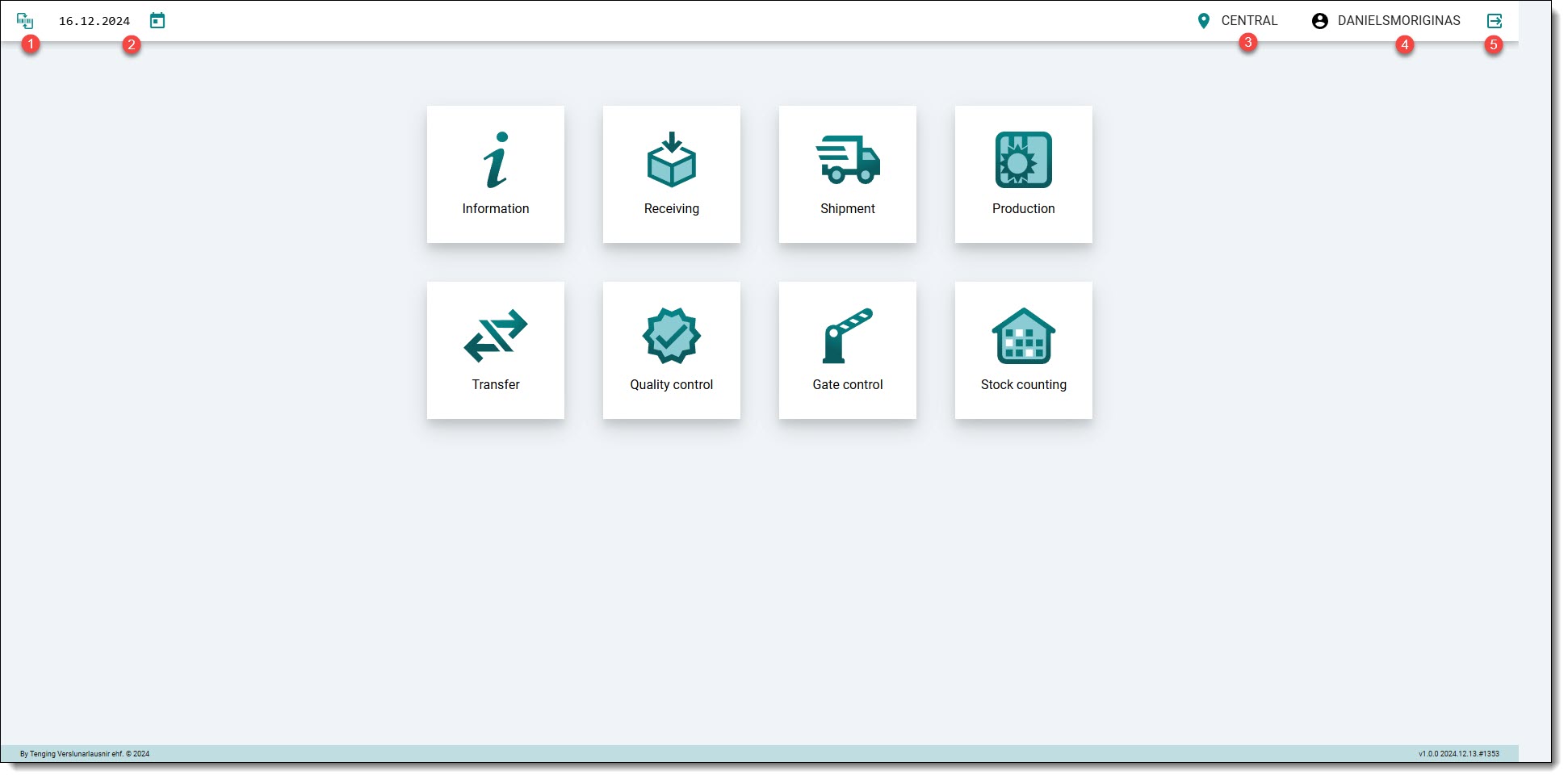
1. When pressed, this button navigates the user back to the main menu.
2. This indicates the currently-selected working date and can be changed by pressing on the icon. The user can also see entries for previous days and make adjustments to them or add new entries.
3. This field indicates the location/station that the user will be using. Every location has different functions, meaning the user will be unable to use certain functionalities based on their current location (the buttons will be greyed out and unavailable).
4. This indicates which user is logged in into the application.
5. This button is used to log out. After the user has completed their work using the application, they must press this button to exit the system. There is also an auto-log off feature which is configured to log the user out after approximately 5 minutes.
¶ Location Functionality
When the user enters their password on the login screen, they will be given an option to select a location. Each location has their own set of functions which can be configured in the Business Central environment.