¶ Navigation
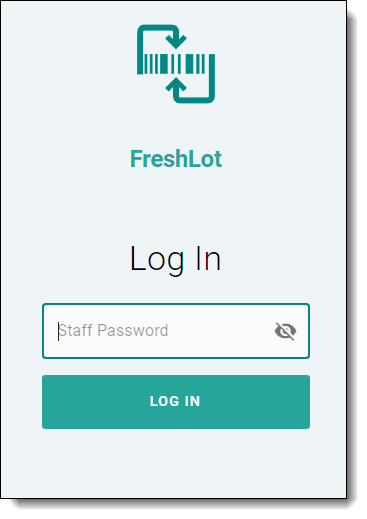
1. By navigating to the Freshlot login screen, the user will find the Staff Password field, and a Log In button.
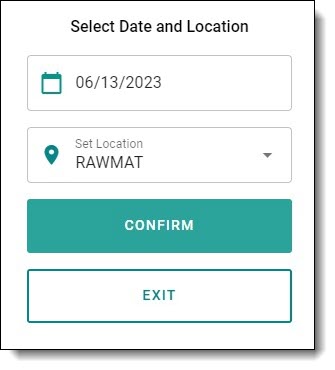
2. After the user enters their staff password, they will be prompted to select the appropriate date and location. By default, the user will see the current working date and their default waarehouse selected based on the Warehouse Employee table configuration. The user can leave the current date selected or set it to the previous day, this allows for any mistakes to be corrected or to add additional information.
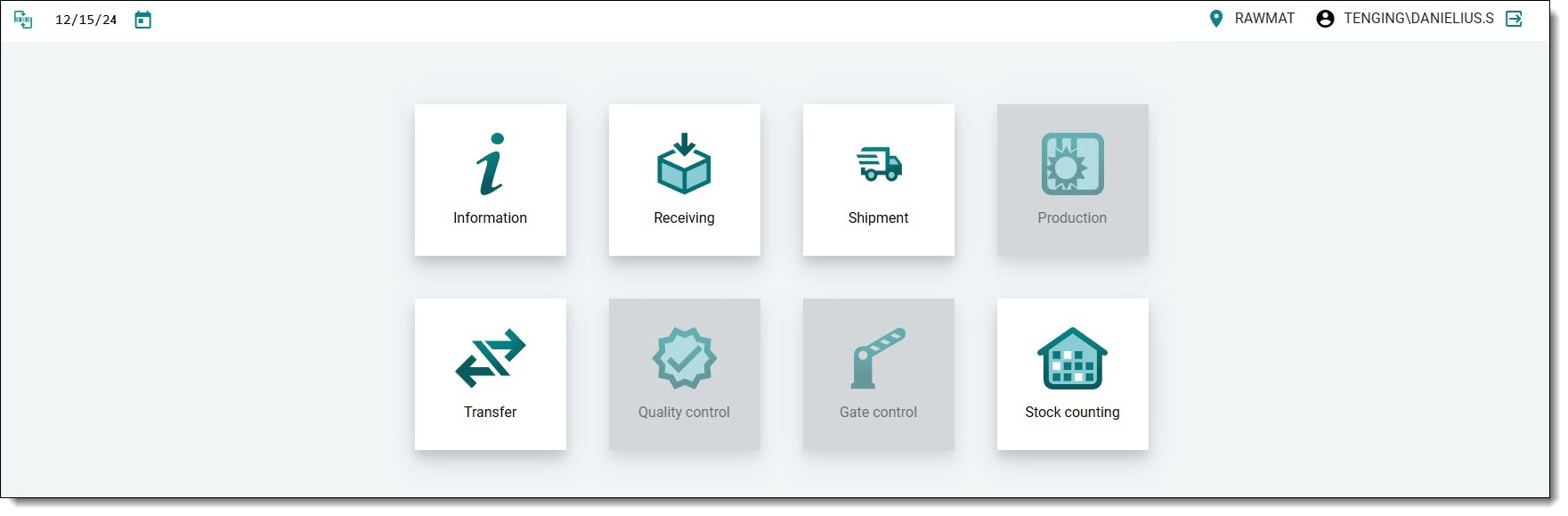
3. After successfully logging in, the user will be redirected to the main menu page. In the main menu, the user can select different options for further system usage.
¶ Use-Case Diagrams
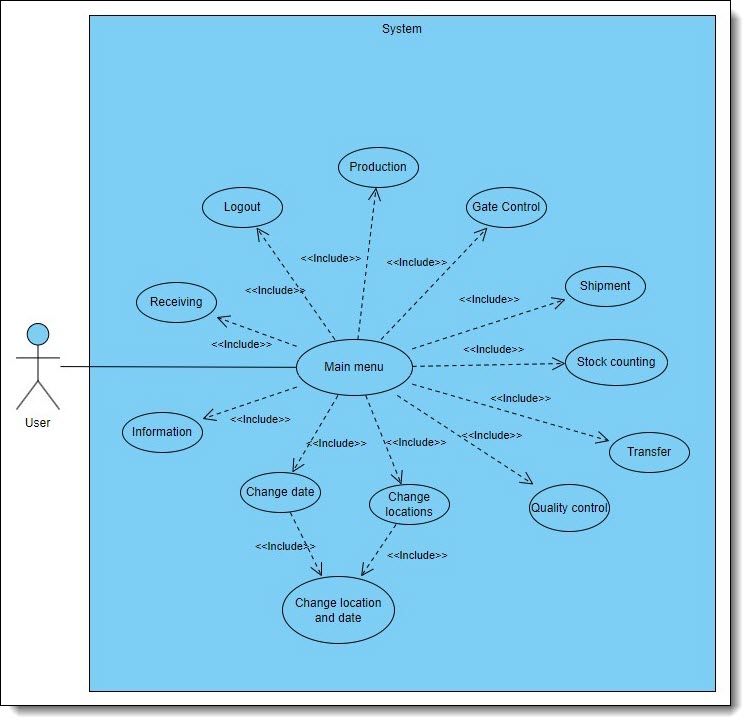
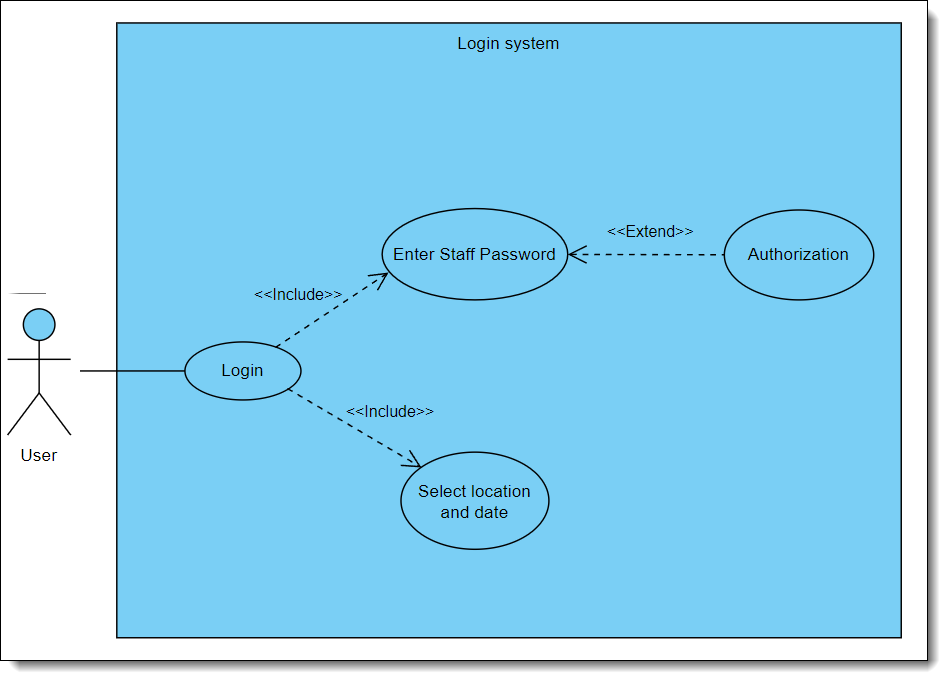
Users navigation in Login
The user enters the FreshLot page and lands on the login page. The user must then enter their password to access FreshLot. When the user enters their password, the system then validates the password. If the password is incorrect, authorization will fail and this will prompt an error. In case of success, a pop-up window will prompt for their location and date selection. The user must select the appropriate location and date to proceed.
Users navigation in Main Menu
After successfully logging in, the user will be redirected to the main menu page. On the main menu, the user can choose where to proceed further in FreshLot.