To perform a return in a Freshlot Business Central environment:
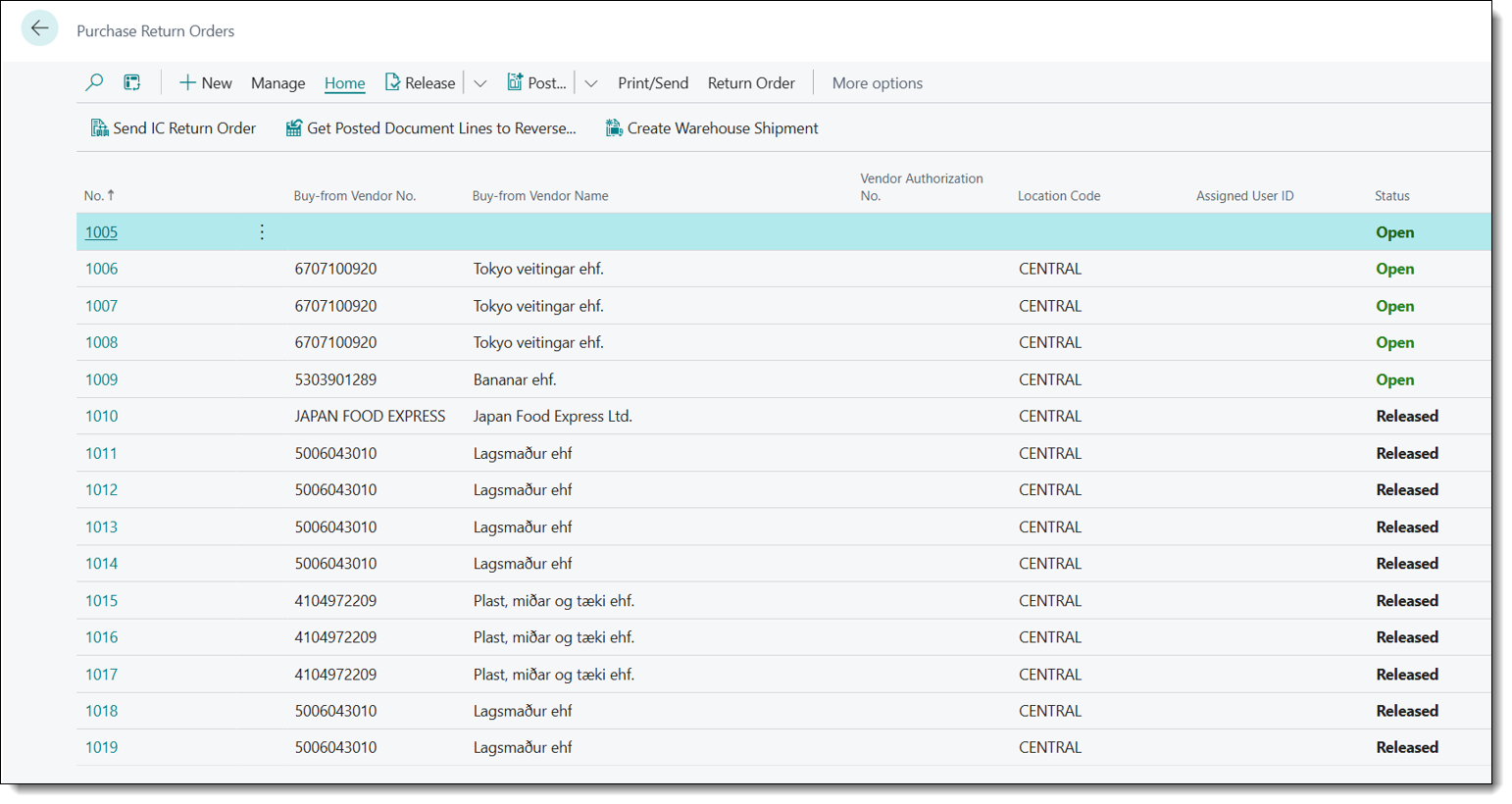
1. Navigate to Purchase Return Orders or Sales Return Orders depending on the document type, and select one of the documents from the list or create one by pressing +New.
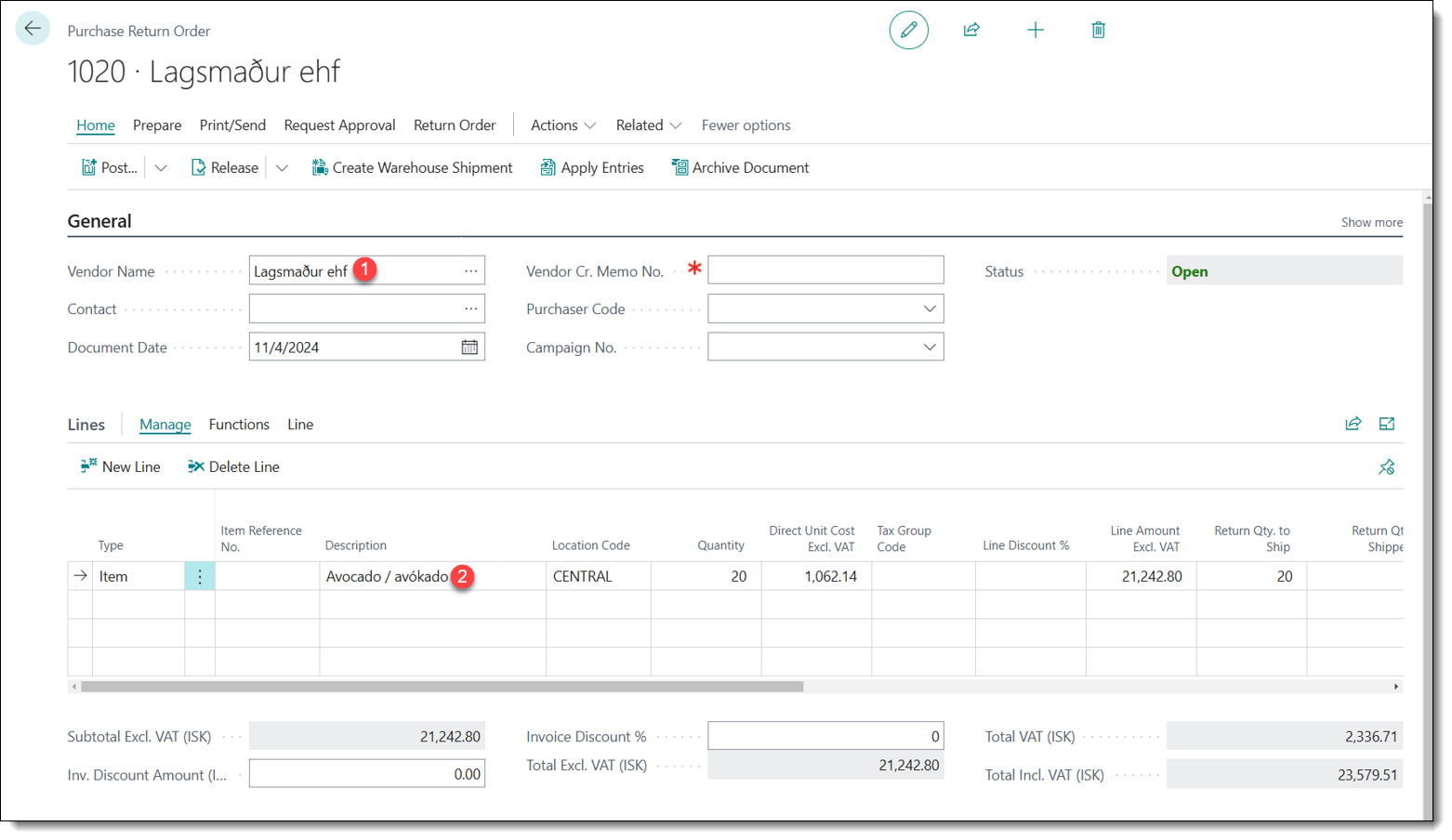
2. Aften opening the document, begin by selecting a Vendor in the Vendor Name field.
3. In the Lines fasttab, select New Line and populate the required fields.
Required fields: Vendor Name, Type, Location Code, Quantity.
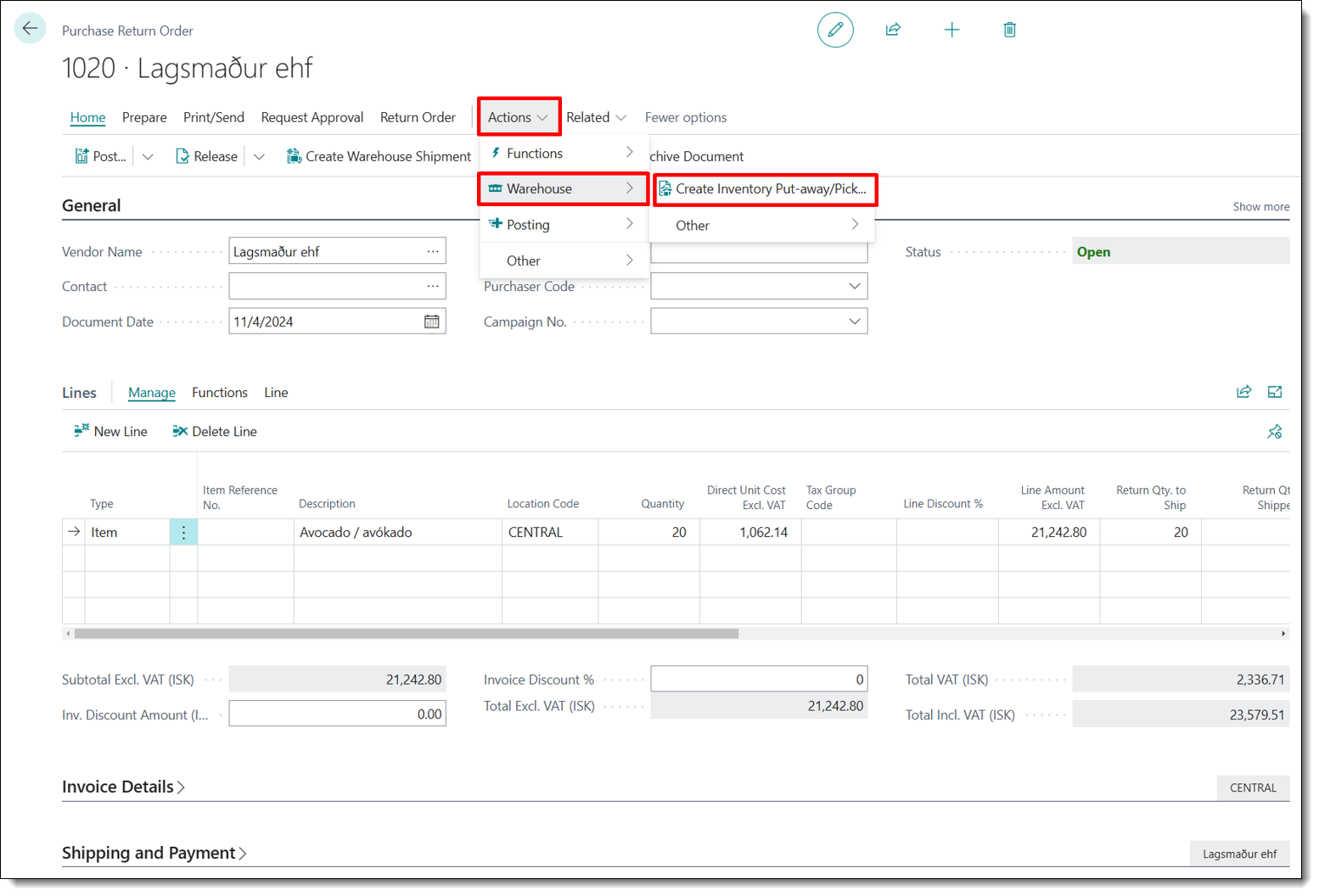
4. After populating the required fields, navigate to the top ribbon menu and press Actions to open a dropdown menu. Then, hover over the Warehouse option and press Create Inventory Put-away/Pick/Movement to begin creating the document.
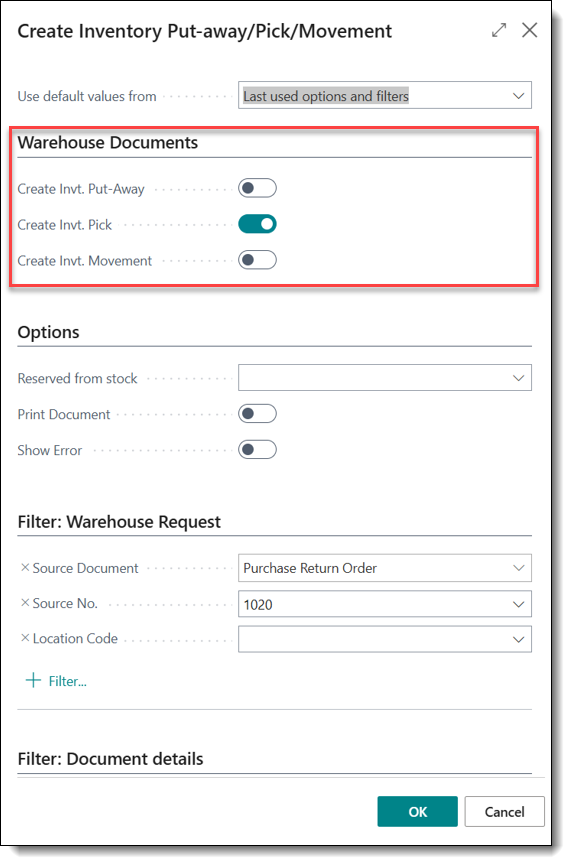
5. A pop-up window will open with the document options. Under the Warehouse Documents tab, mark one of the booleans depending on the return type: In the case of a purchase return, select Create Invt. Pick, and select Create Invt. Put-Away if it is a sales return.
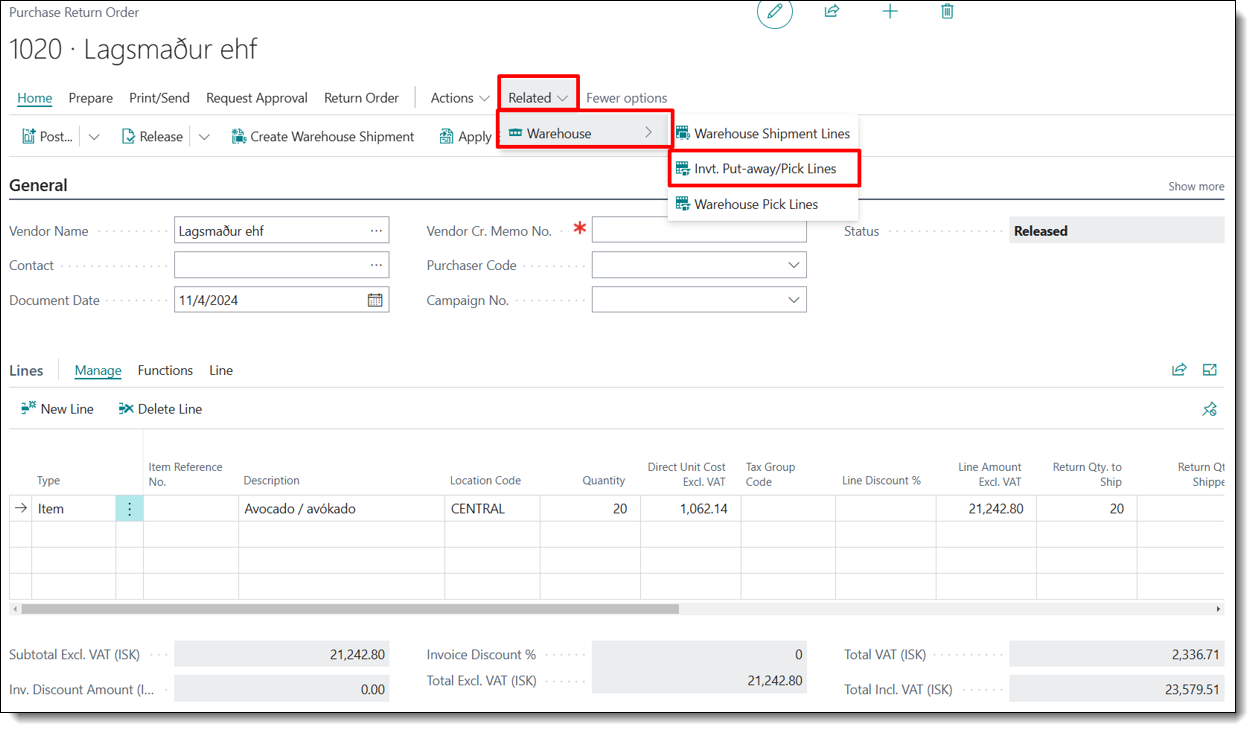
6. After pressing OK, in the top ribbon menu click Related to open a dropdown menu and hover over Warehouse, then select Invt. Put-away/Pick Lines and open the corresponding document.

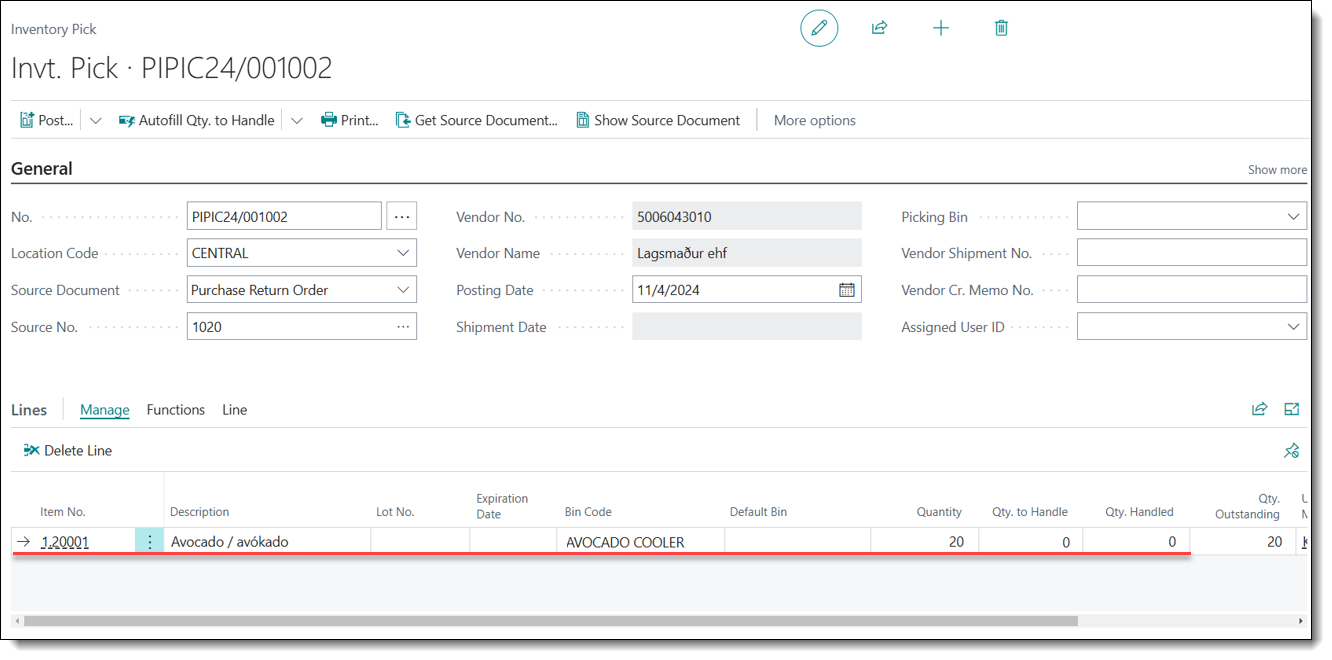
7. In the Lines Fasttab, input the required fields.
Lot No., Expiration Date are populated only if the item is tracked.
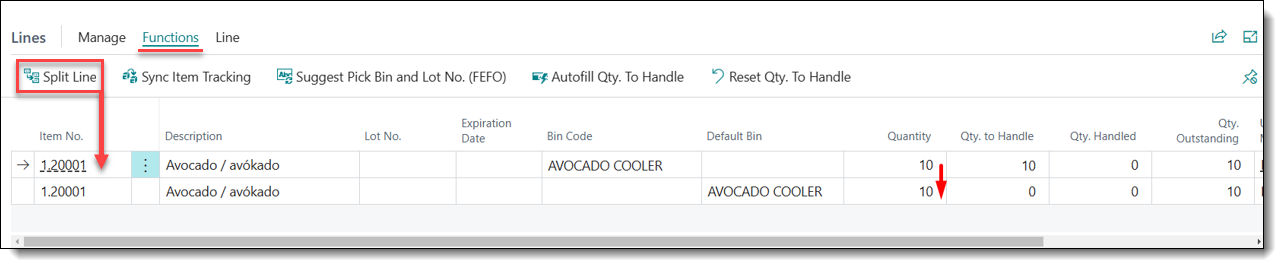
7.1. If the item is picked from several locations or in other quantities, splitting the line is necessary:
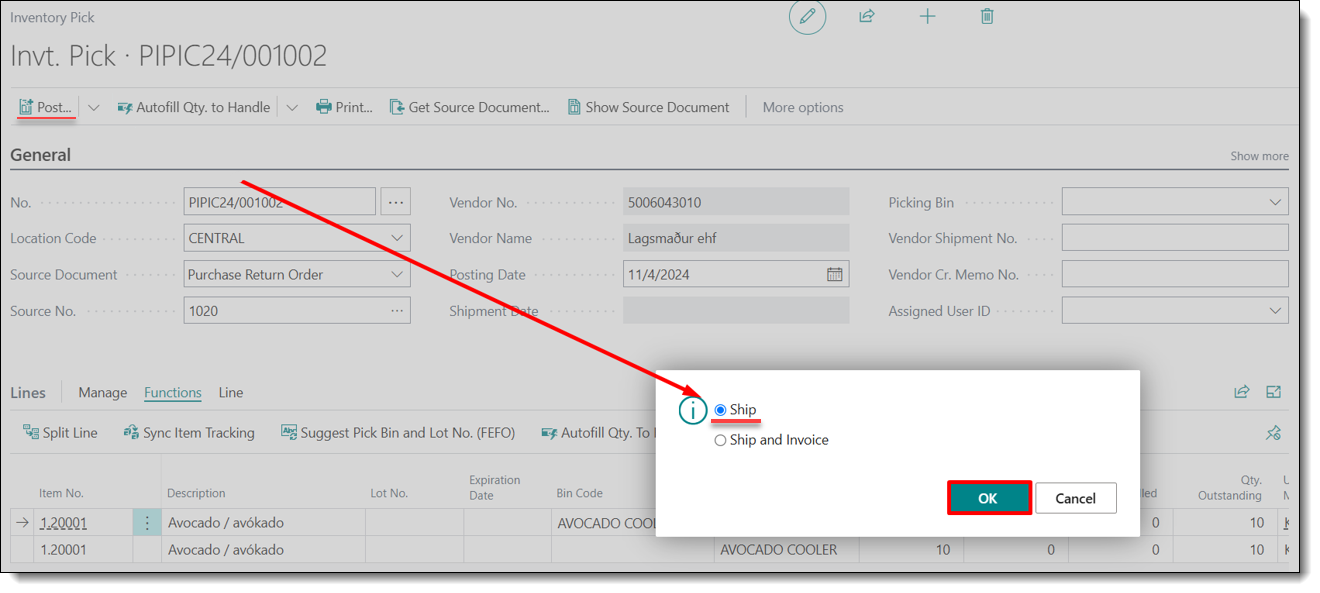
8. Once all of these steps are completed, select Post from the top ribbon menu, Ship, and then press OK.