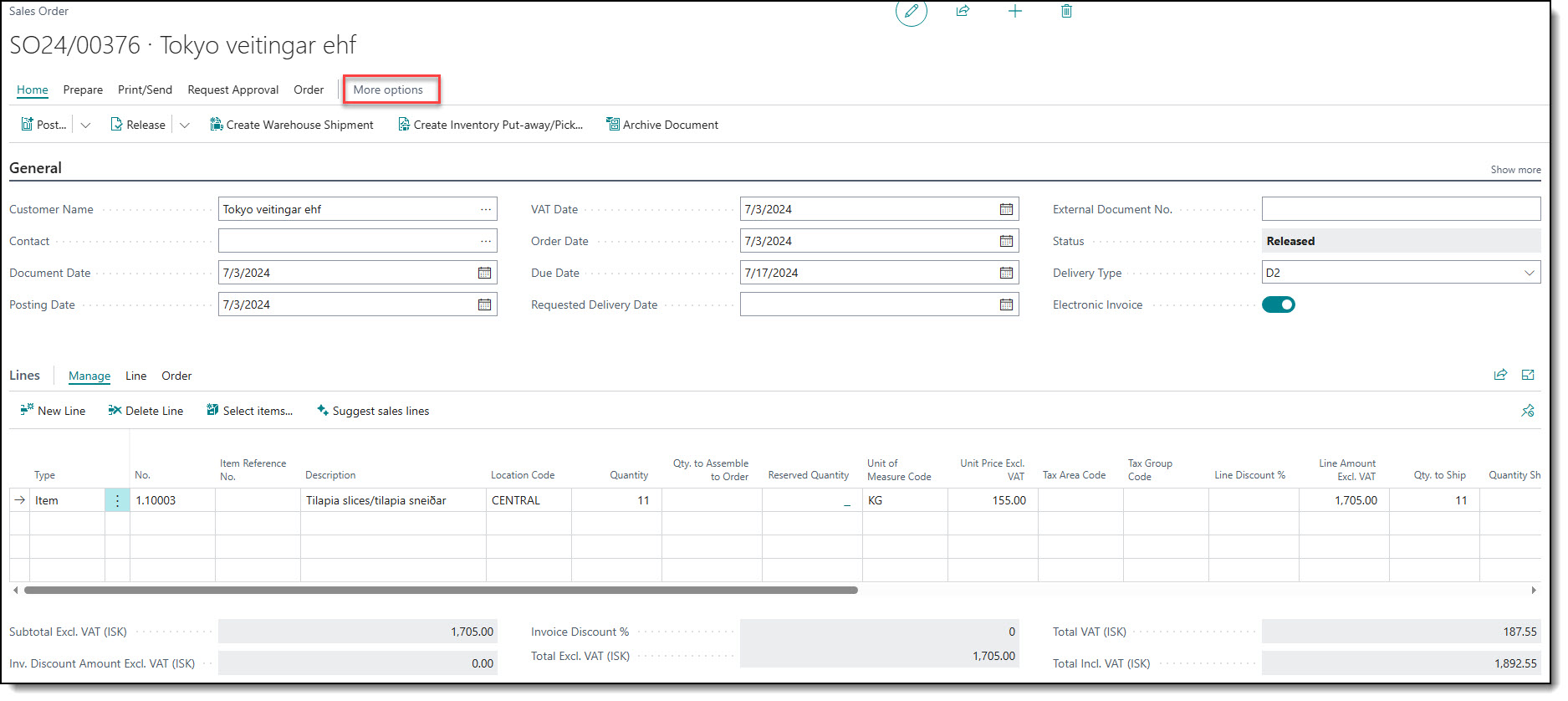
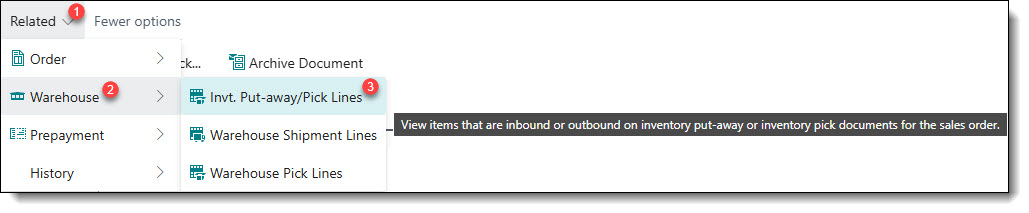
1. An inventory picking document is created automatically and can be found by navigating to the ribbon menu and pressing More options → Related → Warehouse → Inv. Put-away/Pick Lines.
2. A new functionality called “Suggest Pick Bin and Lot No. (FEFO)” has been introduced to this process under the Functions tab in the Inventory Pick Lines. The button suggests a Bin and Lot No. for the line. The function checks the bin content with the oldest inventory and suggests that Bin and Lot No.
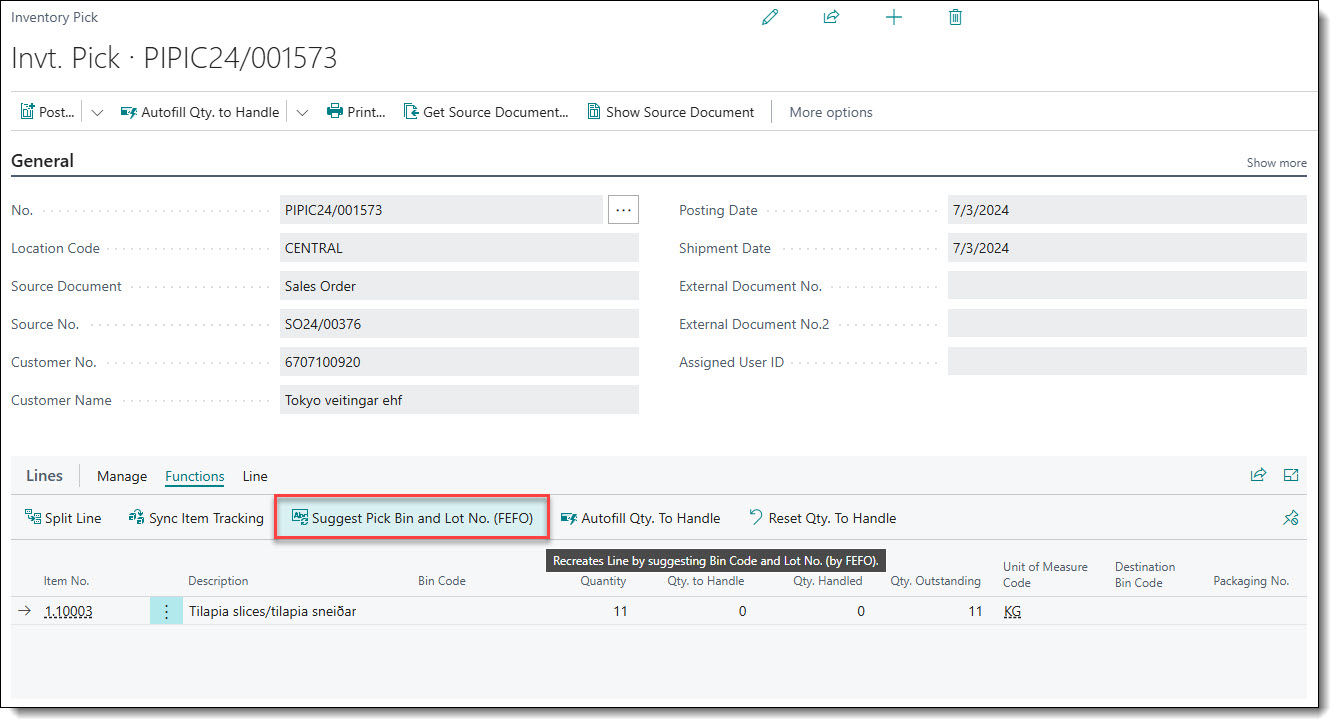
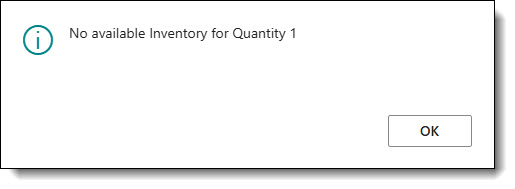
3. If there isn't enough inventory to populate the line quantity, the system splits the line. The user must then use the function “Suggest Pick Bin and Lot No. (FEFO)” again to get suggested Bin and Lot for the line. If it is not available, then the Bin and Lot is not populated and system shows a message stating that “No available Inventory”:
4. Once the picking lines are ready, the user can then print a “Picking List” document and move forward with collecting the items. The user must input the Qty. Handled” as this quantity will be populated in the Picking List document in the field Qty. to Handle.
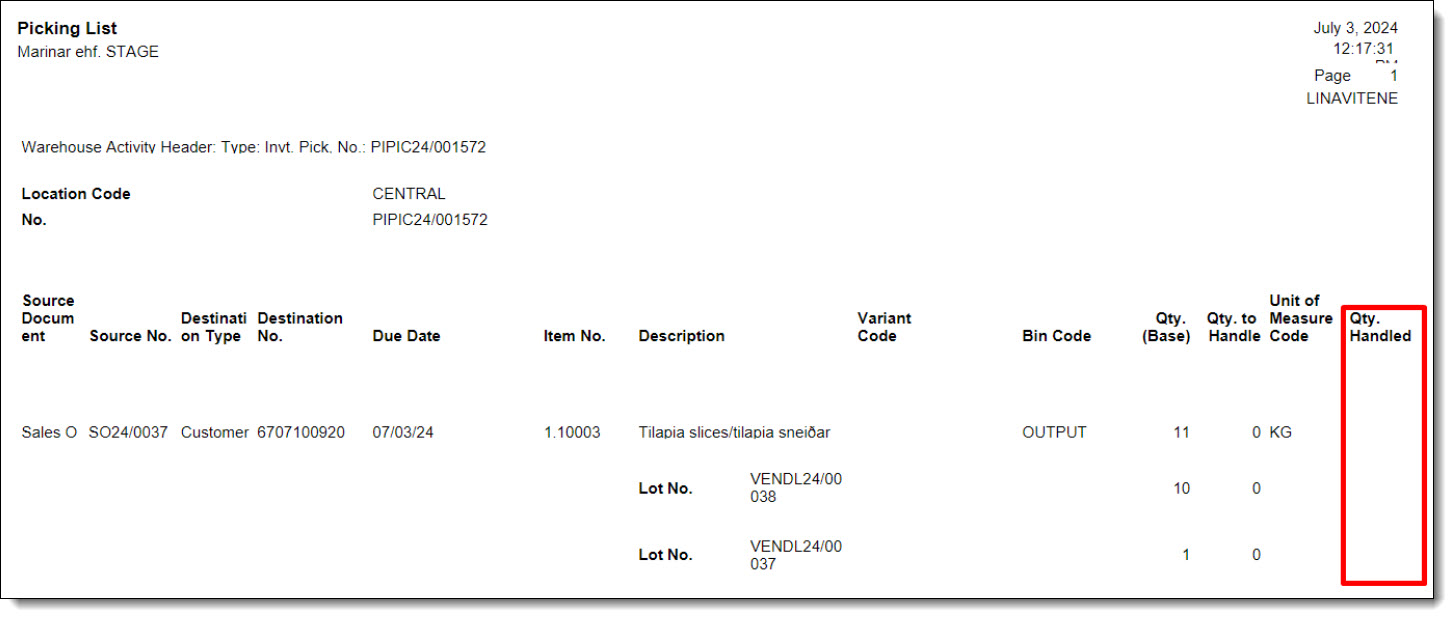
5. Once the user has completed picking, they must enter the Qty. to Handle.

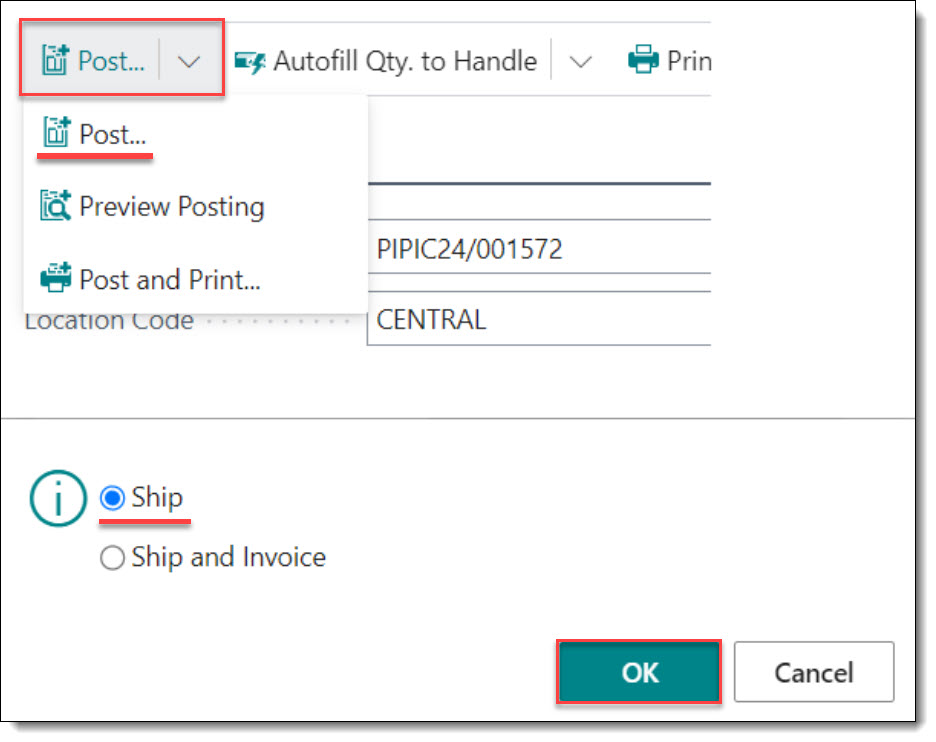
6. Once picking is finished and the Qty. to Handle is populated, shipping has to be completed by hitting on Post... from the Inventory Pick ribbon menu and selecting Post... and then Ship.
7. If, after posting, one or more of the picking lines are not picked and the user is not planning to pick them anymore, the recommendation would be to delete this Inventory Picking document.