¶ Receiving
The purpose of the Receiving module is to help warehouse employees process incoming goods from purchase and warehouse receipt documents. Users can record received quantities, assign items to bins, manage lot and expiration information, print labels, and submit the receipt information to Business Central.
¶ Navigation
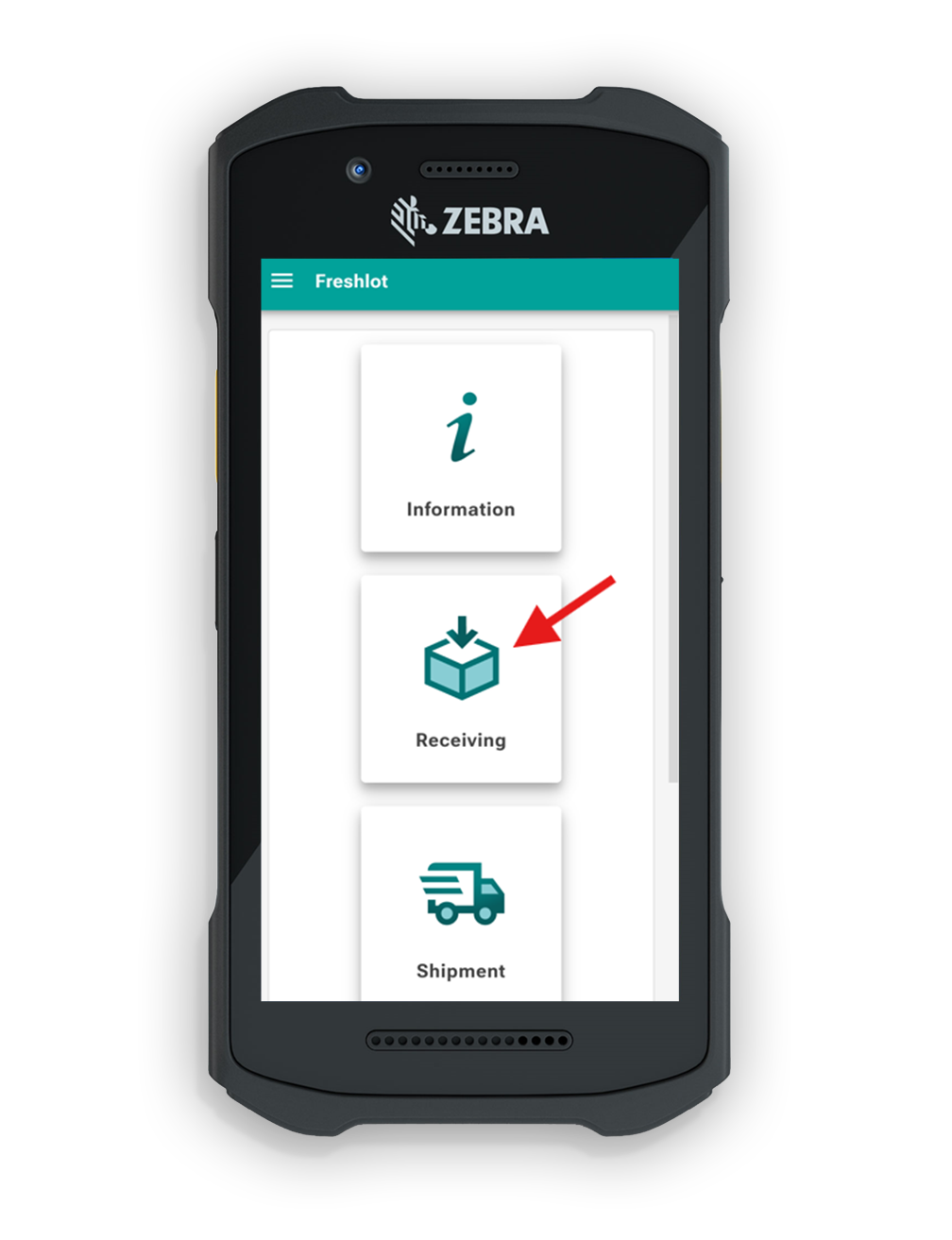
1. User logins to Freshlot environment and, on the main menu, selects the Receiving module.
2. By clicking one of the Sources, the system will filter all of the Receipts for this specific source (e.g. Vendor). If the user does not select a Source, the system will display all of the available Receipts regardless of the Source.
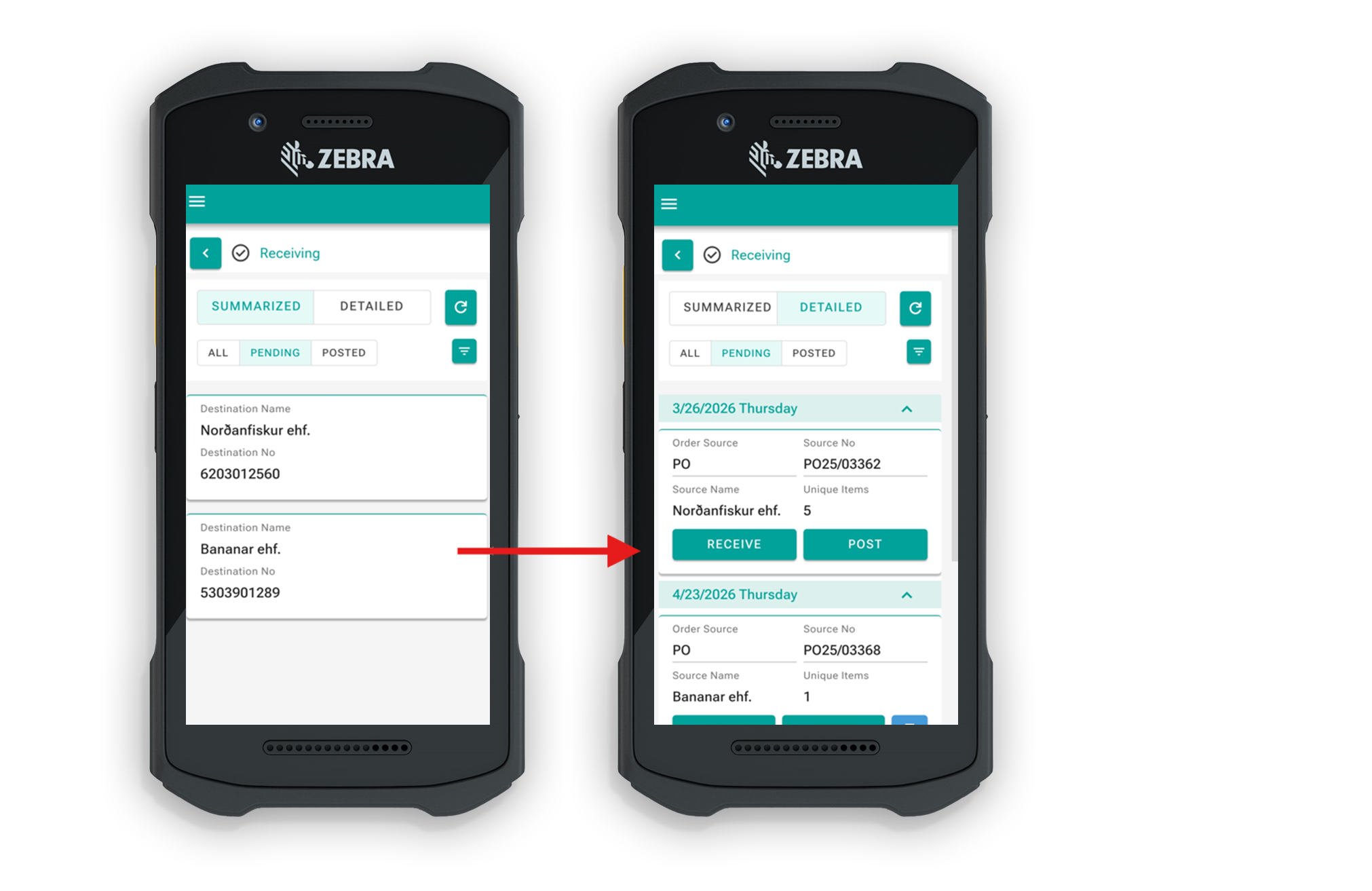
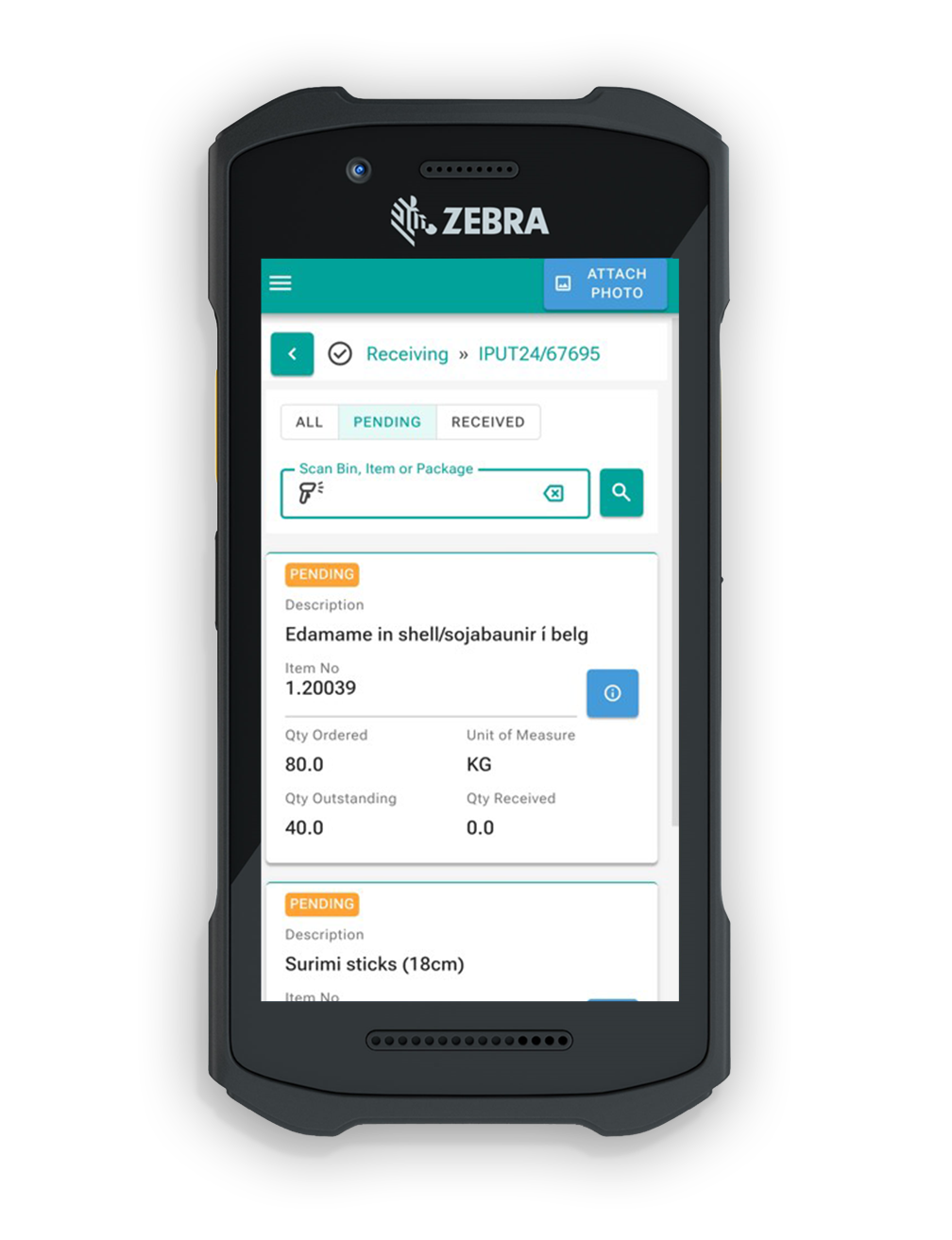
3. After selecting one of the Receipts, the system will populate the list of Items / incoming goods that user can choose from. List is generated according to purchase orders.
¶ Receiving without Lot no assigned
1. User proceeds by selecting one of the items by scanning barcode or selecting item from the list. Following page will appear on the users screen.
2. The system populates Quantity and UOM (Unit of Measure) for the selected item from the warehouse document. If user changes the UOM, then the Quantity of the item changes accordingly by UOM settings in BC.
3. User enters the Quantity that he receives and proceeds to scan the Bin Code to select. User has to scans bin code, where he intends to put the item.
4. By proceeding with "Submit and Print" selection with filled out fields, the system will confirm that the Line has been submitted and will print labels for the given quantity.
5. If item has the remaining quantity to receive, users sees same screen again. Otherwise he will be redirected to the document list.
¶ Receiving with Lot No. assigned
1. If the item is traceable and has a Lot No. assigned, user will have to fill additional fields"Production/Packaging date" and "Expiration Date".
2. By entering the "Production/Packaging date", the "Expiration Date" is adjusted accordingly as shown below regarding to settings at the Item card at BC, Expiration calculation field.

3. User may assign a new Lot No. for this item by pressing "NEW LOT NO" button if such doesn't exist on Item label. System will generate the new Lot No. accordingly to the system requirements.
4. To proceed with the receiving, user needs to scan the bin code on the label, or enter it manually into the search bar.

5. After inputting bin code, the bracket will be populated with the bin code. User then can proceed with receiving function. When user will click on submit and print, label copies will come out and receiving will be submitted. If label copies field wont be populated by user, pop-up message will appear on the screen asking if user wants to proceed without label copies. By pressing Yes, receiving still be submitted.

6. After successful release of the document, user now will be able to post the document. User will need to go back to the Freshlot application and select the option to post.


7. After successfully posting the document, the user will be greeted with the confirmation message.