¶ Shipment
The Shipment module supports the outbound shipment process in FreshLot. It allows users to pick the required items, load the prepared bins, and complete the shipment by recording the vehicle and driver information.
The shipment process is divided into three main stages:
- To Pick
- To Load
- To Send
Each stage becomes available after the previous stage has been completed, either fully or partially.
¶ Navigation
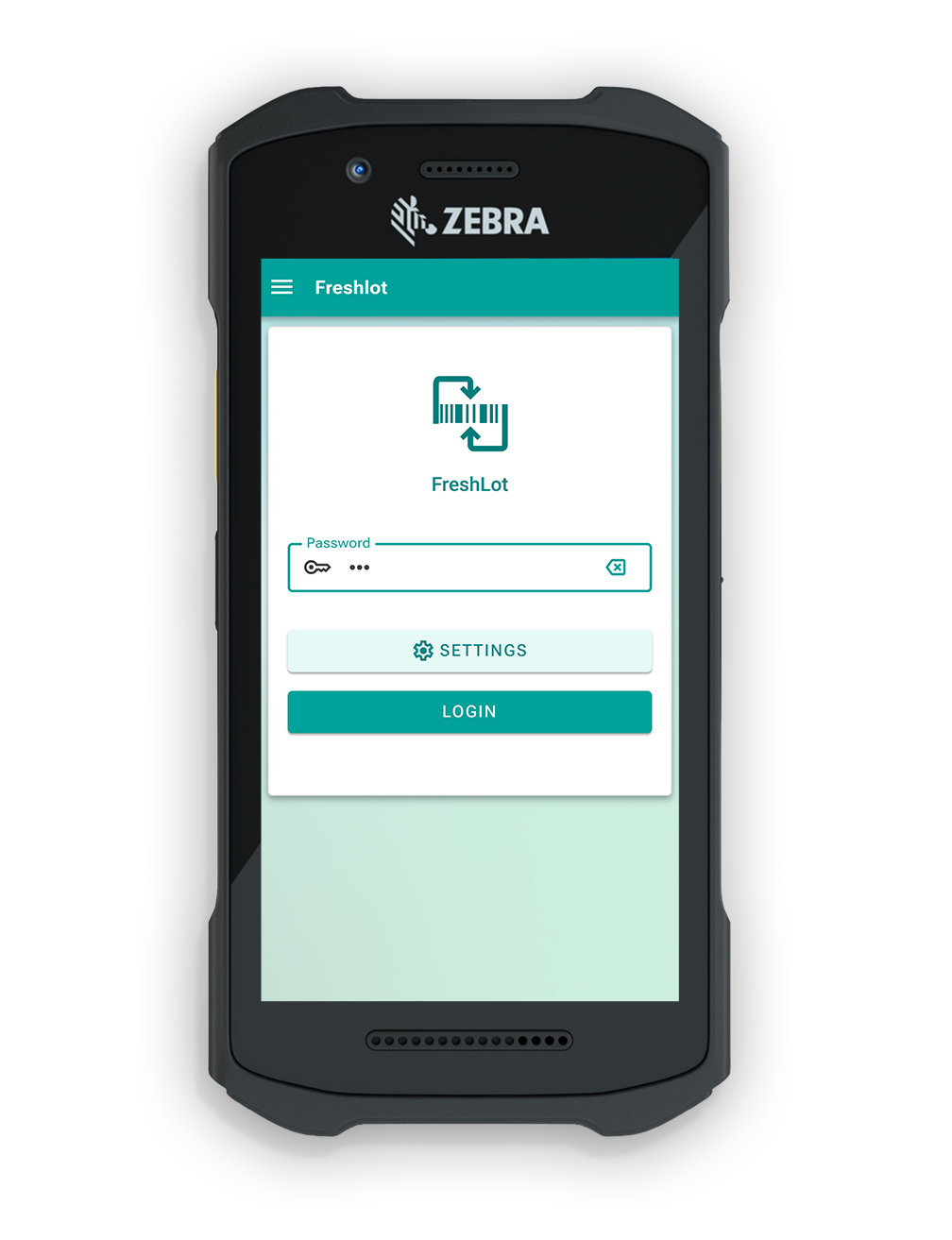
- Sign in to FreshLot.
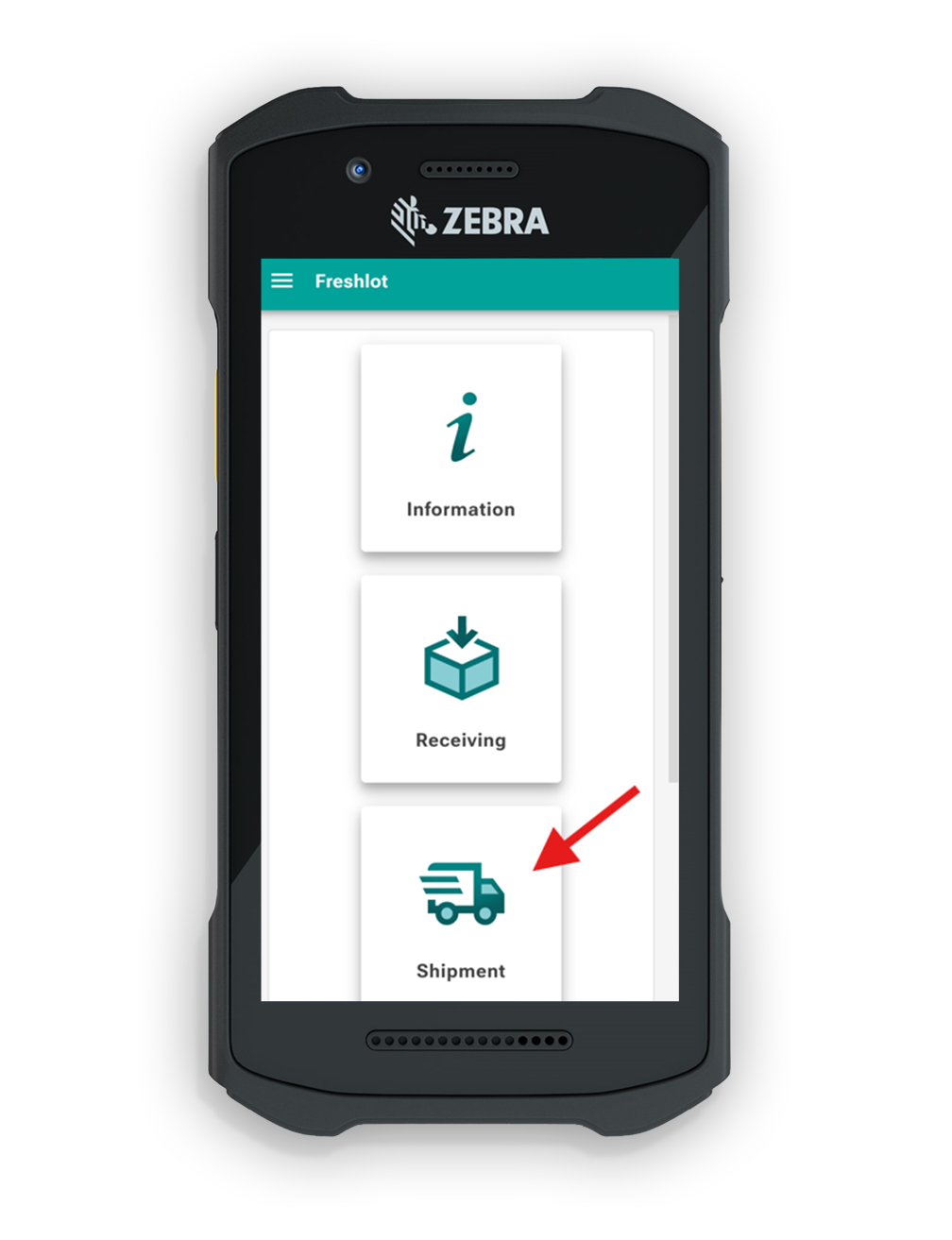
- From the main menu, select Shipment.
¶ Find a shipment
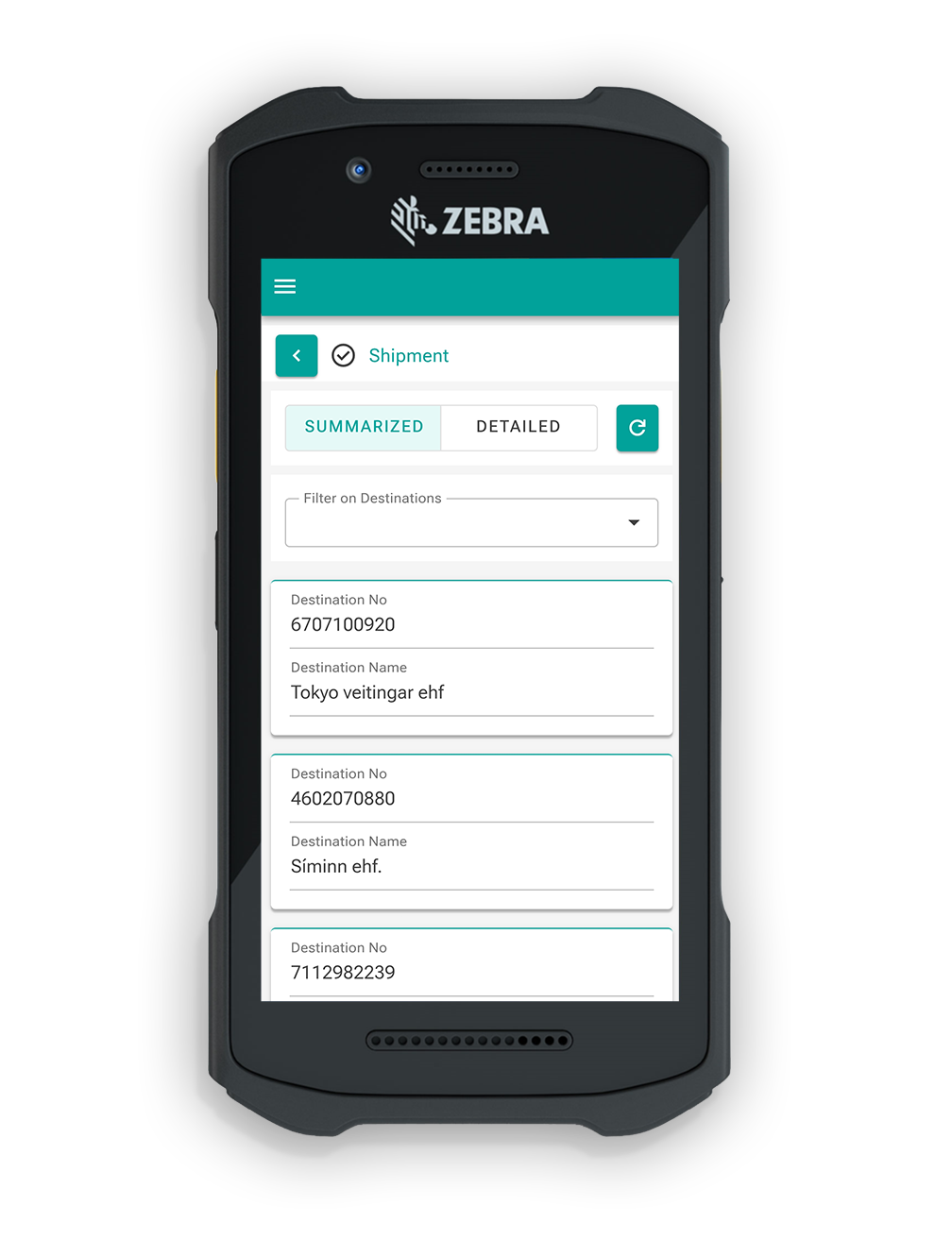
The Shipment page allows users to view shipment documents by source.
- Select a source to display shipments associated with that source.
- Open the Shipments tab to view all available shipments, regardless of their source.
- Select the required shipment to continue.
¶ Shipment status and available actions
After selecting a shipment, FreshLot displays the following actions:
- To Pick
- To Load
- To Send
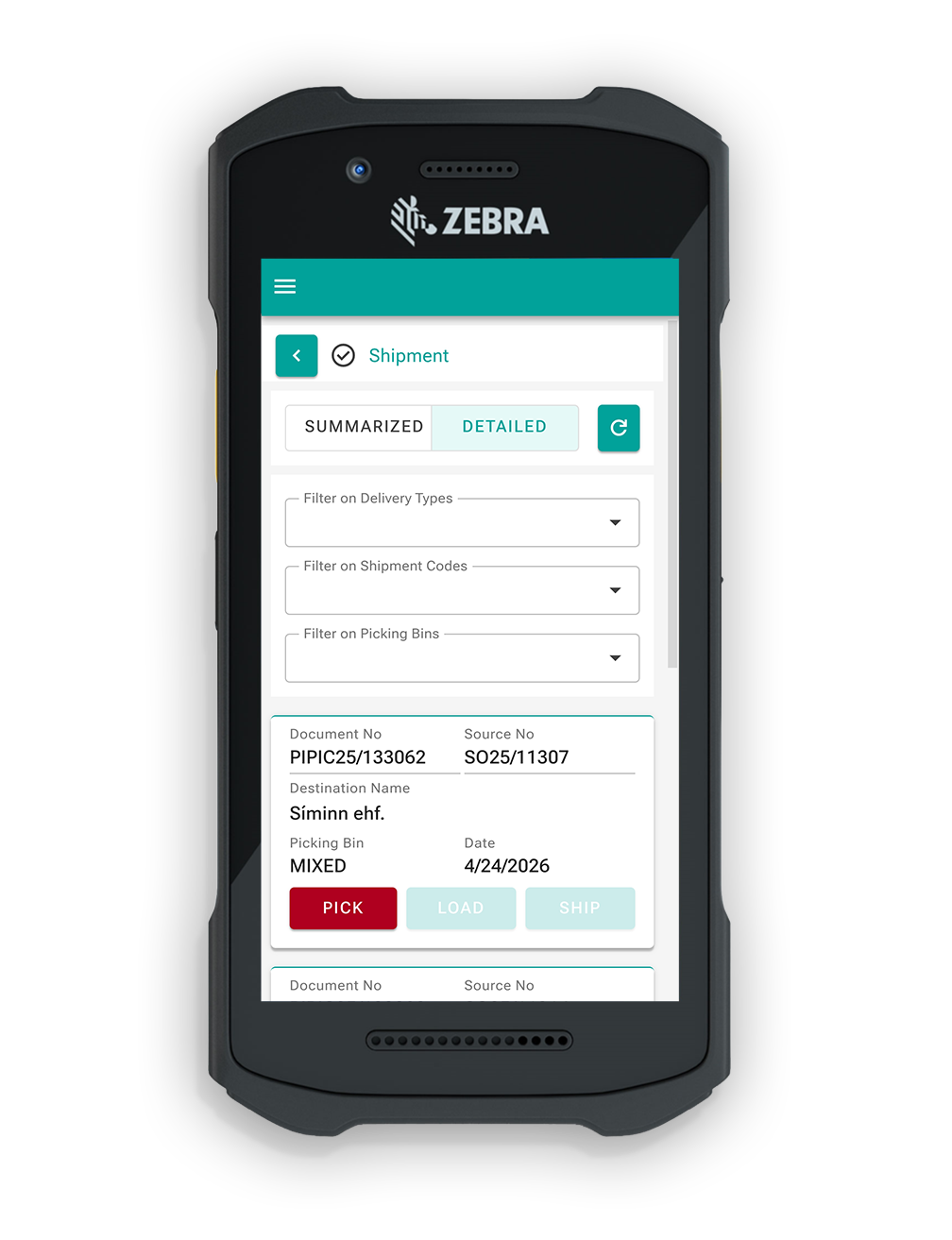
An action may appear unavailable or greyed out when the required preceding stage has not yet been completed.
For example:
- To Load becomes available after at least part of the shipment has been picked.
- To Send becomes available after at least part of the shipment has been loaded.
FreshLot also supports partial shipment processing. This means that picked or loaded quantities may be processed without waiting for the complete shipment to be finished.
¶ Pick items for shipment
Use To Pick to select and prepare the items required for the shipment.
¶ 1. Open the picking page
Select the green To Pick from the shipment action list.
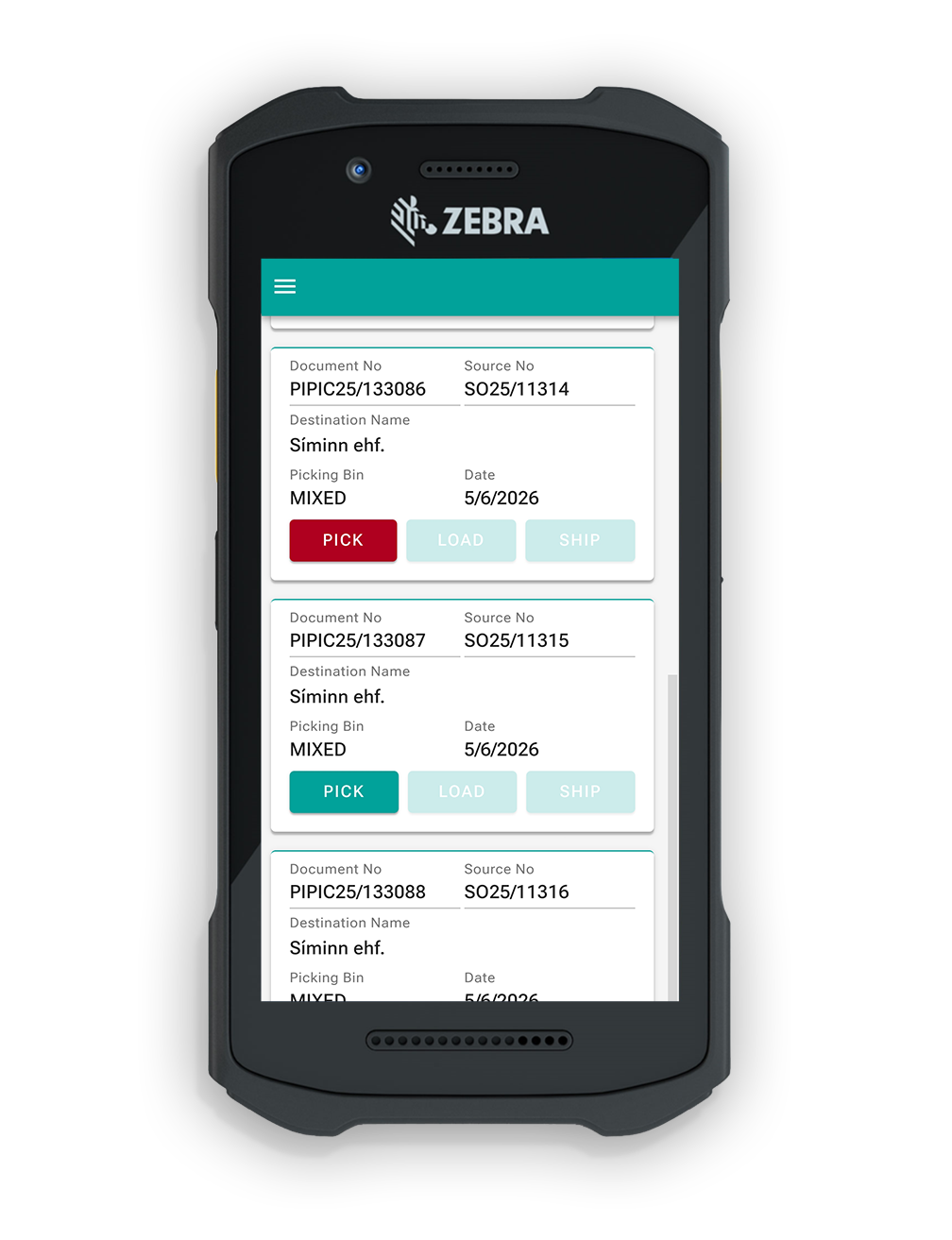
FreshLot displays the items included in the selected shipment.
¶ 2. Select an item
Select the item that needs to be picked.
FreshLot opens the item details page, where the required picking information can be reviewed and entered.
¶ 3. Scan or enter the item information
Scan the item label or enter the required information manually.
Depending on the selected item, FreshLot may populate the following fields automatically:
- Item No.
- Lot No.
- Outstanding Quantity
- Unit of Measure
- Expiration Date
The Outstanding Quantity is adjusted according to the selected unit of measure.
The user must confirm or enter the following information where applicable:
- Quantity to pick
- Unit of measure
- Lot number
- Destination bin
- Number of label copies
Note: Some values are populated automatically from the shipment document and item information stored in Business Central.
¶ 4. Select or create a destination bin
User can then choose to immediately Load the current Bin for shipment by using the "To Load" toggle in the top right. To Finish the process user must click "Submit" button.
¶ 5. Print a label
Select Print to print a label for the selected item or bin.
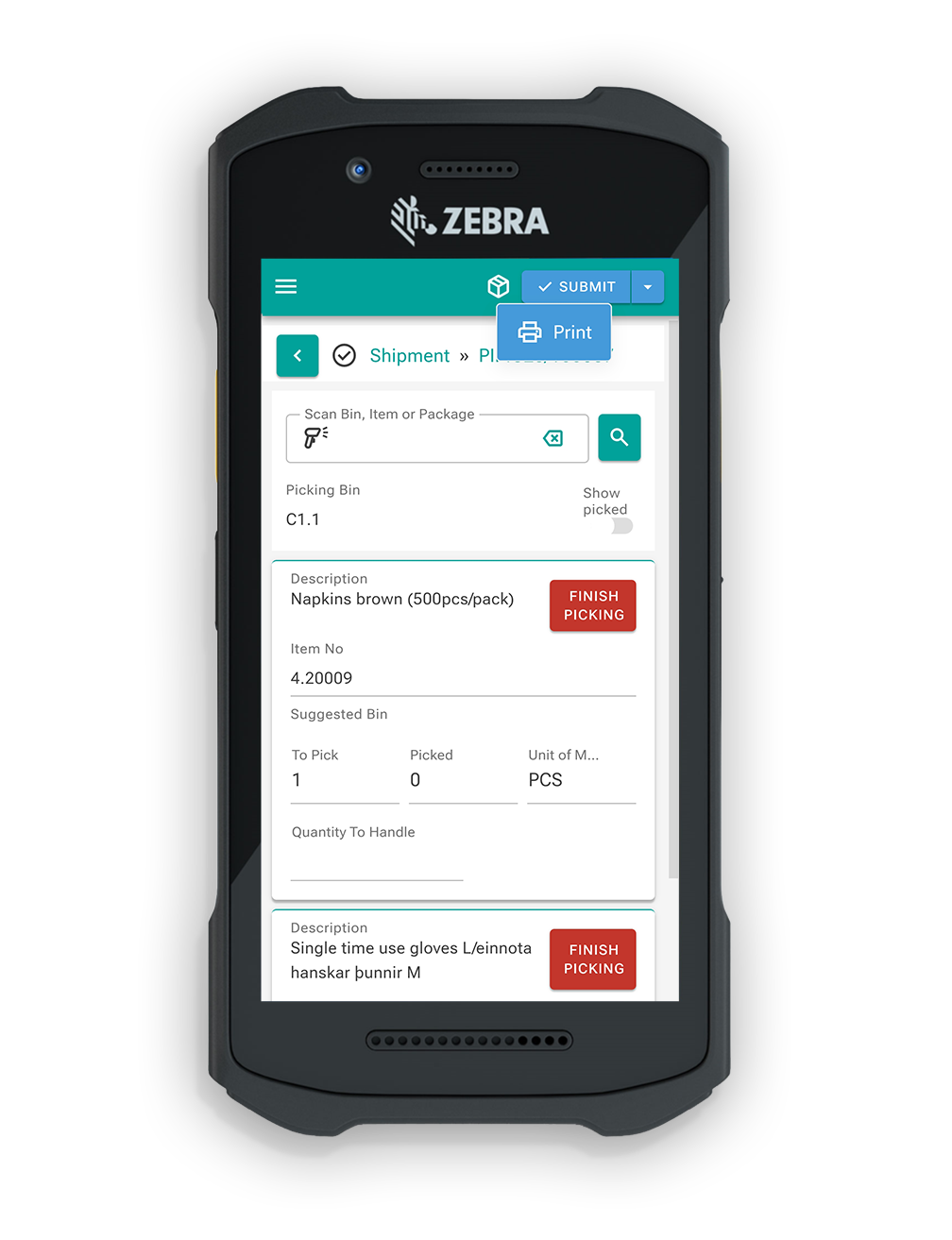
The number of copies can be entered where the label copy option is available.
¶ 6. Mark the bin for loading
Enable the To Load option when the current bin should be made available for the loading stage immediately after picking.
¶ 7. Submit the picked quantity
Review the entered information and select Submit.
FreshLot records the picked quantity and updates the shipment.
¶ Quality control
If this specific shipment needs to go to Quality control (in physical location, there will be a box for that) , user can click on the slide button, fill the rest of the information (other information functions will disappear), and he will need to click on submit to formally put it for quality control.
When this option is enabled:
- Bin-related destination fields may be hidden.
- The item is recorded as being sent for quality control.
- The user must complete the remaining required information and select Submit.
The physical warehouse should have a designated area or container for items awaiting quality control.
¶ Item not found
There is also a button Not found, that works in the same way as Quality Control. (In the location there will be a designated box for the not found materials). In other words, if the quantity won't match and worker cannot find it, he will have a function to put it to not found.
Enable Not Found when the expected item or quantity cannot be located and the user does not intend to continue searching for it.
When this option is enabled:
- Bin-related destination fields may be hidden.
- The missing item or quantity is recorded accordingly.
- The user must select Submit to confirm the result.
The physical warehouse may have a designated area or process for materials recorded as not found.
¶ Workflow Summaries
¶ Picking workflow
During picking:
- The user selects an item.
- FreshLot retrieves the available item and shipment information.
- The user enters or confirms the required quantity, lot number, unit of measure, and destination bin.
- A new bin may be generated when required.
- The item may alternatively be marked for quality control or as not found.
- The user submits the picking result.
The submitted information is used to update the related records in Business Central.
¶ Loading workflow
During loading:
- The user opens the To Load function.
- One or more prepared bins are selected or scanned.
- The user confirms that the selected bins have been loaded.
- The shipment may remain in the loading stage or proceed directly to To Send.
¶ Sending workflow
During sending:
- The user opens the To Send function.
- FreshLot confirms that the required loading conditions have been met.
- The vehicle registration plate and driver information are entered.
- The user confirms the shipment.
- FreshLot completes the process and updates Business Central.
Important: FreshLot may prevent a user from opening a later shipment stage until the required previous stage has been completed at least partially.