¶ What is Stock Counting?
Stock Counting helps to generate a worksheet that would allow managers to account for and count existing ingredients/materials with the help of a UI connected to BC.
The stock counting process is based on the Physical Inventory Journal Worksheet in Business Central.
¶ How to use this module
To begin the stock counting process, the user will first have to log in to FreshLot and select a work location.
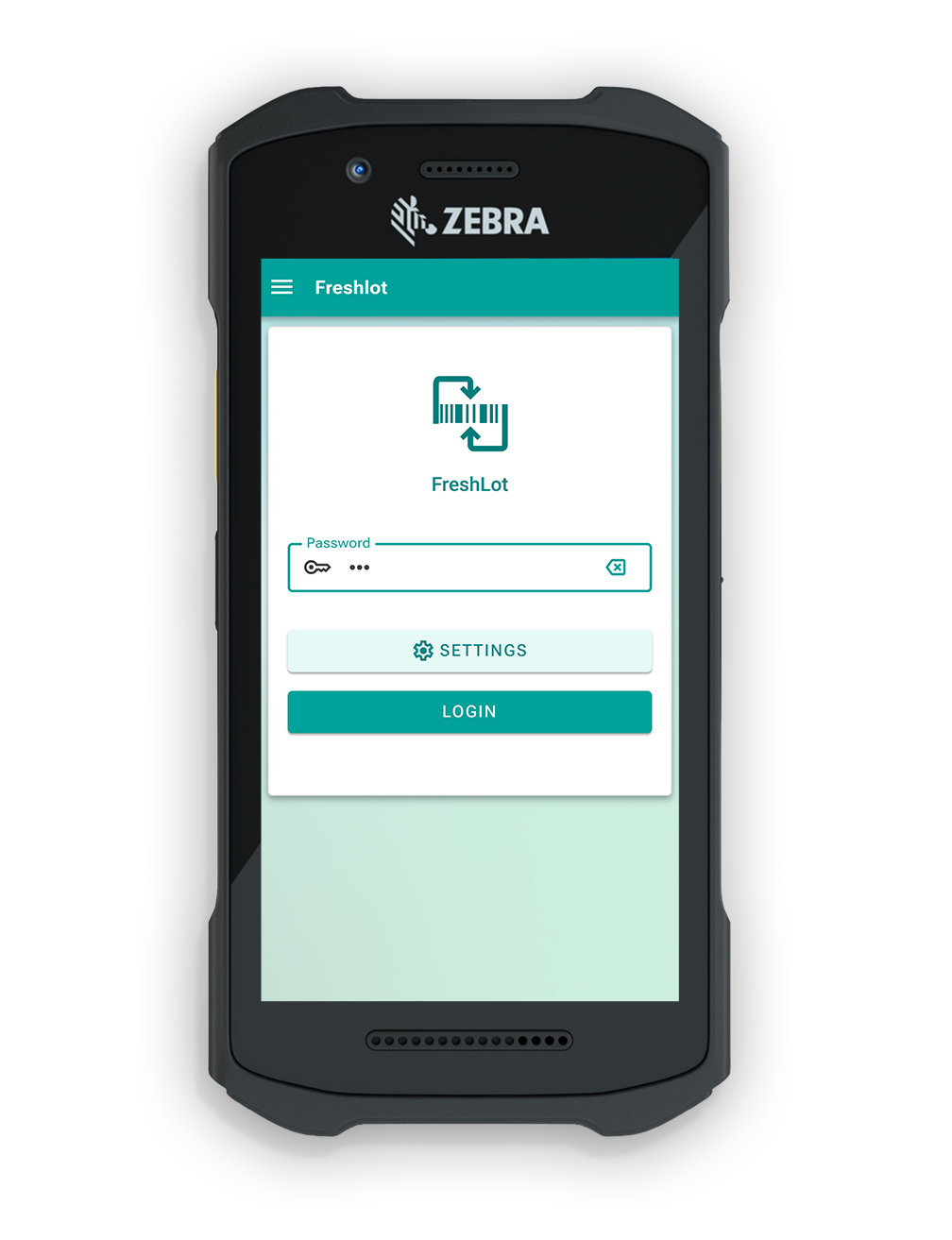
After logging in, you will need to select a location containing the items or bin that you would like to count for stock
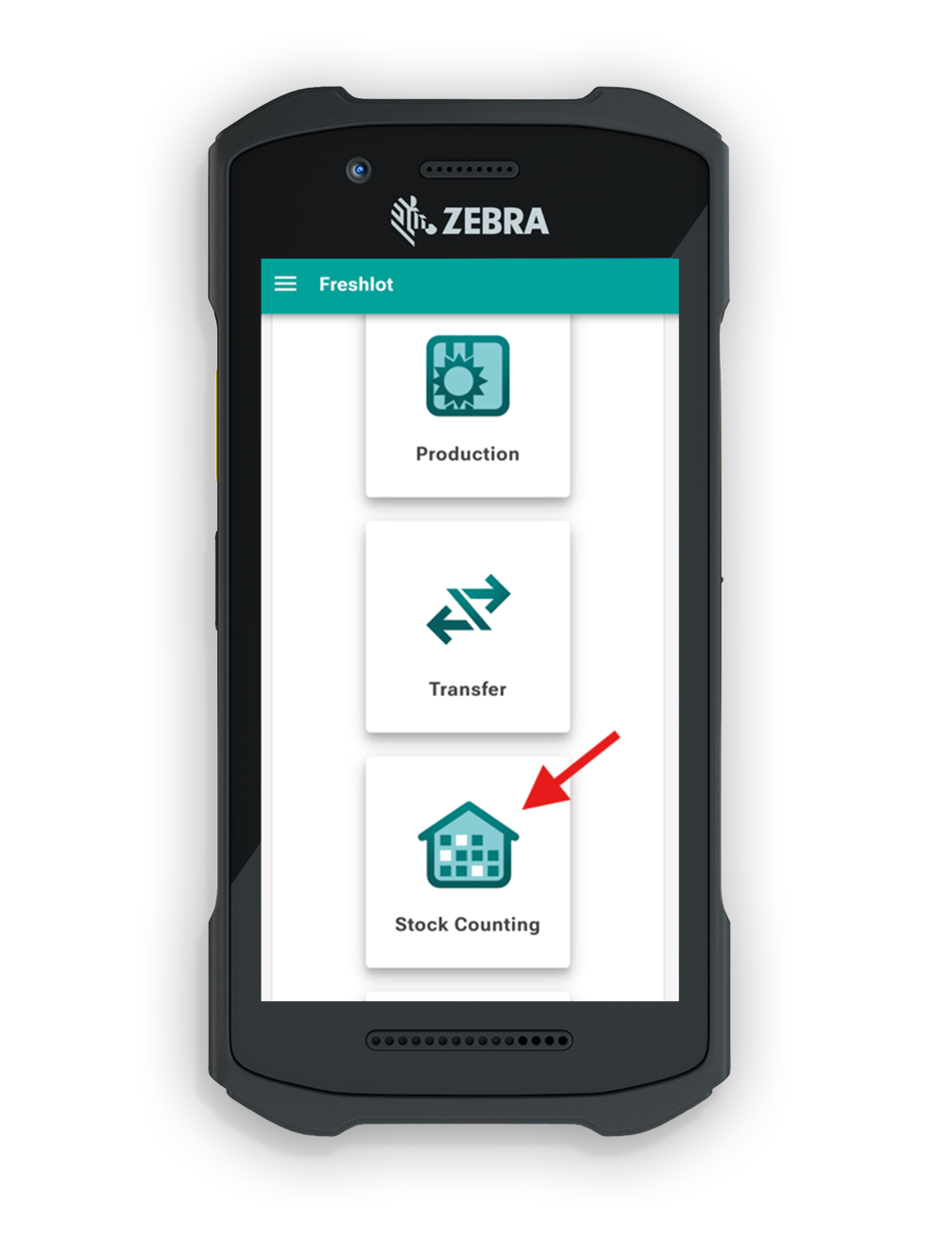
Press Submit then, proceed to the main menu and select the Stock Counting module to proceed to the stock counting functionality.
Please note that, during stock counting, there must be no inventory movement in the warehouse.
We recommend doing this process at the beginning or end of a workday to ensure the accuracy of the count, and minimize inventory movement.
1. When the user begins stock counting, the Item Journal Batch is assigned, and a Physical Inventory Worksheet/Stock Counting list will be opened; the user can begin counting items in their respective Bins.
Depending on the Item Category and whether or not the selected Item No. filters will be populated fully or partially list of Items after hitting of button Generate. Each location has its own batch to create a separate worksheet.
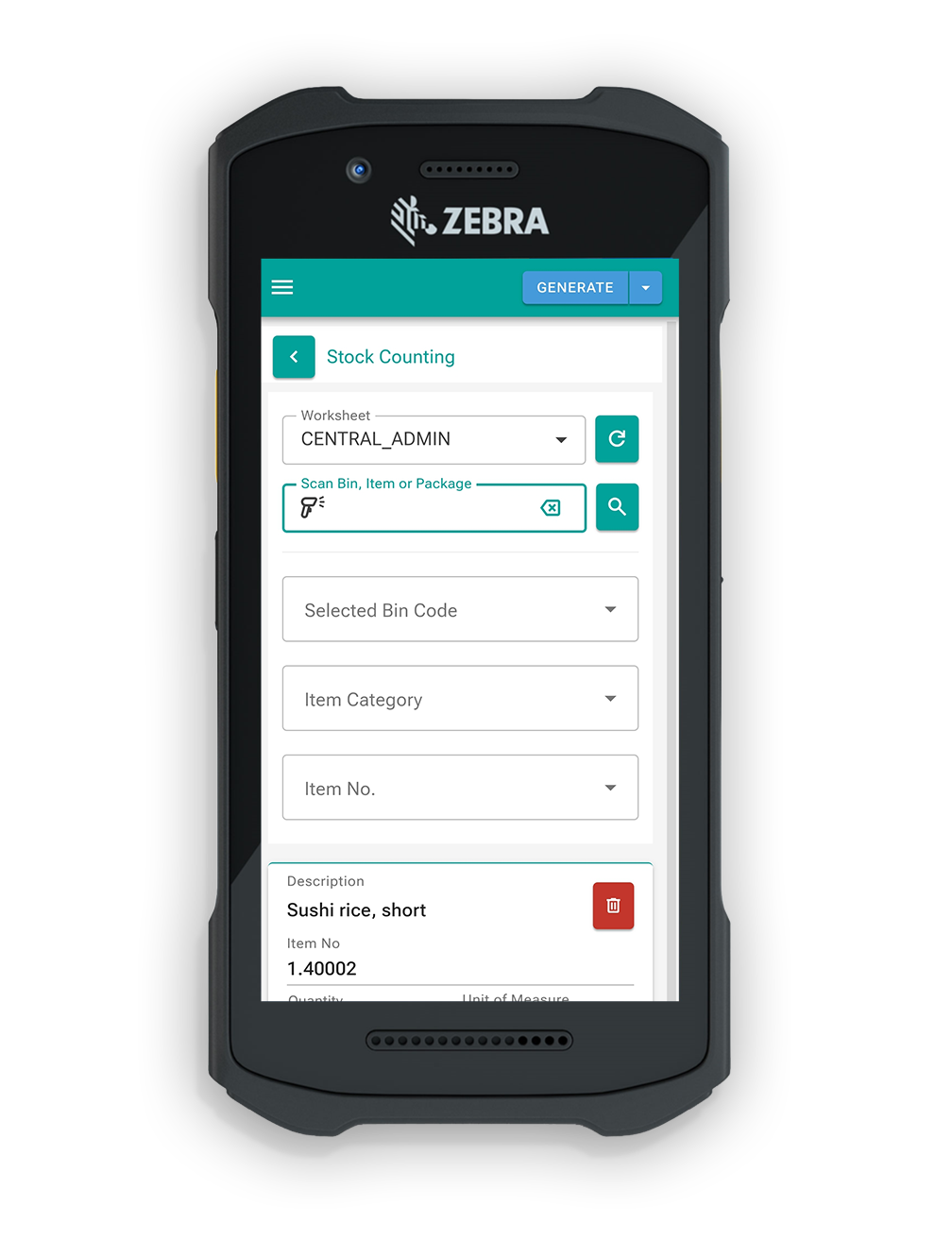
2. An Item Journal batch is auto-generated and will always apply to the same user. it's also possible to add a Reason code to the batch, thus warehouse entries will have an associated reason code with the Entry.
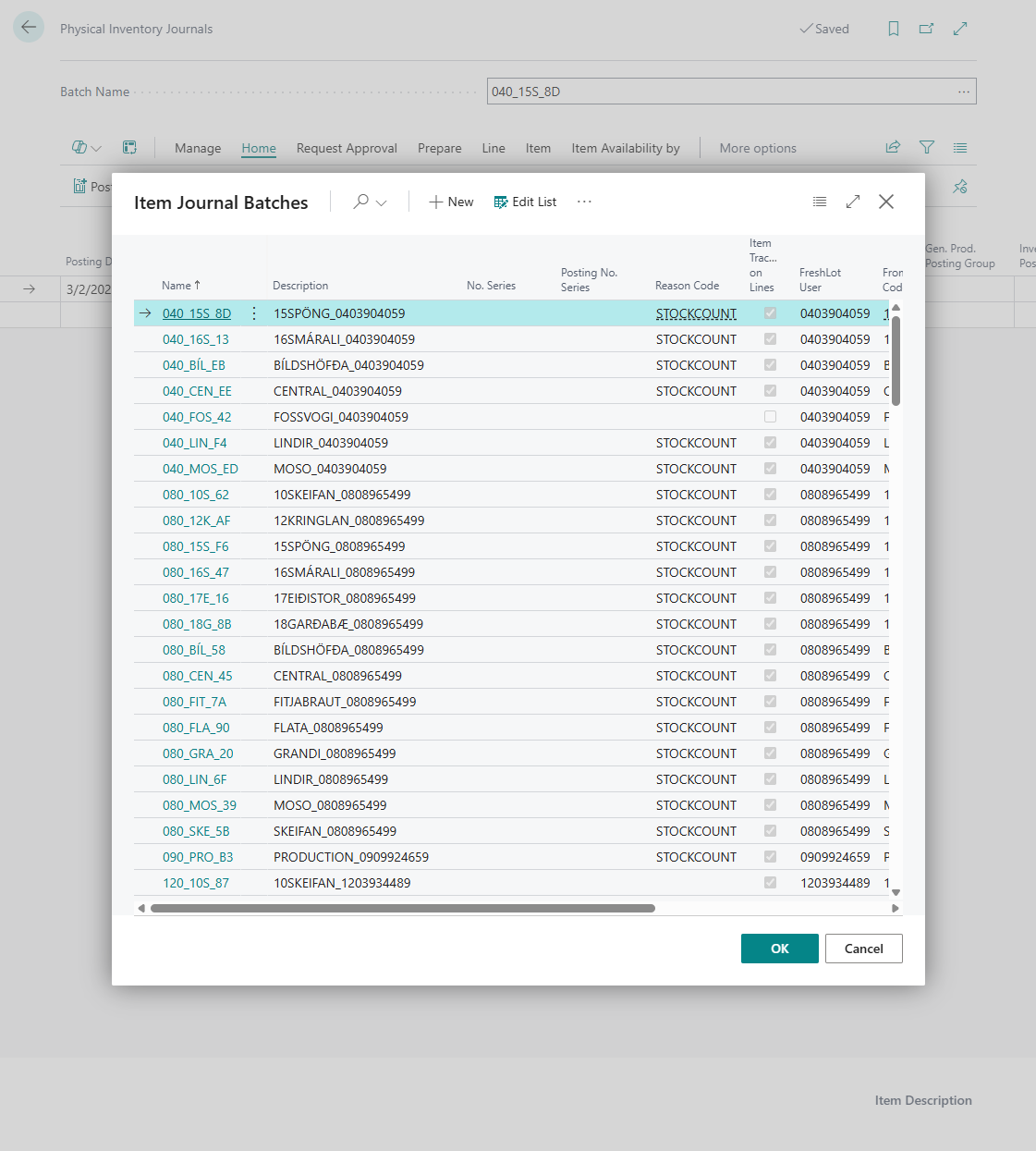
3. After choosing the fields, the system will populate information about each item with specific parameters regarding Bin and Lot No. fields.
ㅤ
¶ Bin code functionalities
1. The user can also scan items into the search field for Bin code search. If location will have a Bin Mandatory function enabled, system will display an error message. All Items that user will scan further with correct bin code, will be adjusted to current bin. To change Bin code, user have to scan the new one. After that, user can scan Item labels with specific information inside;
2. If user have chosen a specific Item Category and/or not Item No. filters and Item, You just scanned, do not belong to list, system will display error message;
3. If the current Item doesn't belong to the bin user are currently scanning, user may receive a message;
4. If information must be updated user can do it directly on dedicated screen field. If You need to cancel current counting result, You have to use specific sign.
ㅤ
¶ Count input
1. After entering the information into the search bar, page will be populated with information accordingly by the search input;
It is recommended to not use quantity update due to the possibility of incorrect quantity input. Please use scanning of information from labels as the main input source for collecting correct data.
2. When all of the information has been collected, please press the button Finish Counting to complete the stock counting process;
3. The user will be prompted to submit their decision. By selecting Yes, the data will be submitted.
¶ Manual Quantity Entry
Manual Quantity Entry allow users to enter stock counted quantities manually for a selected line, instead of only using label scanning. It allows count stock manually when a label is unavailable or scanning is not practical.
"Enter Qty manually" button is added in the dropdown menu between:
- Add item
- Finish Counting
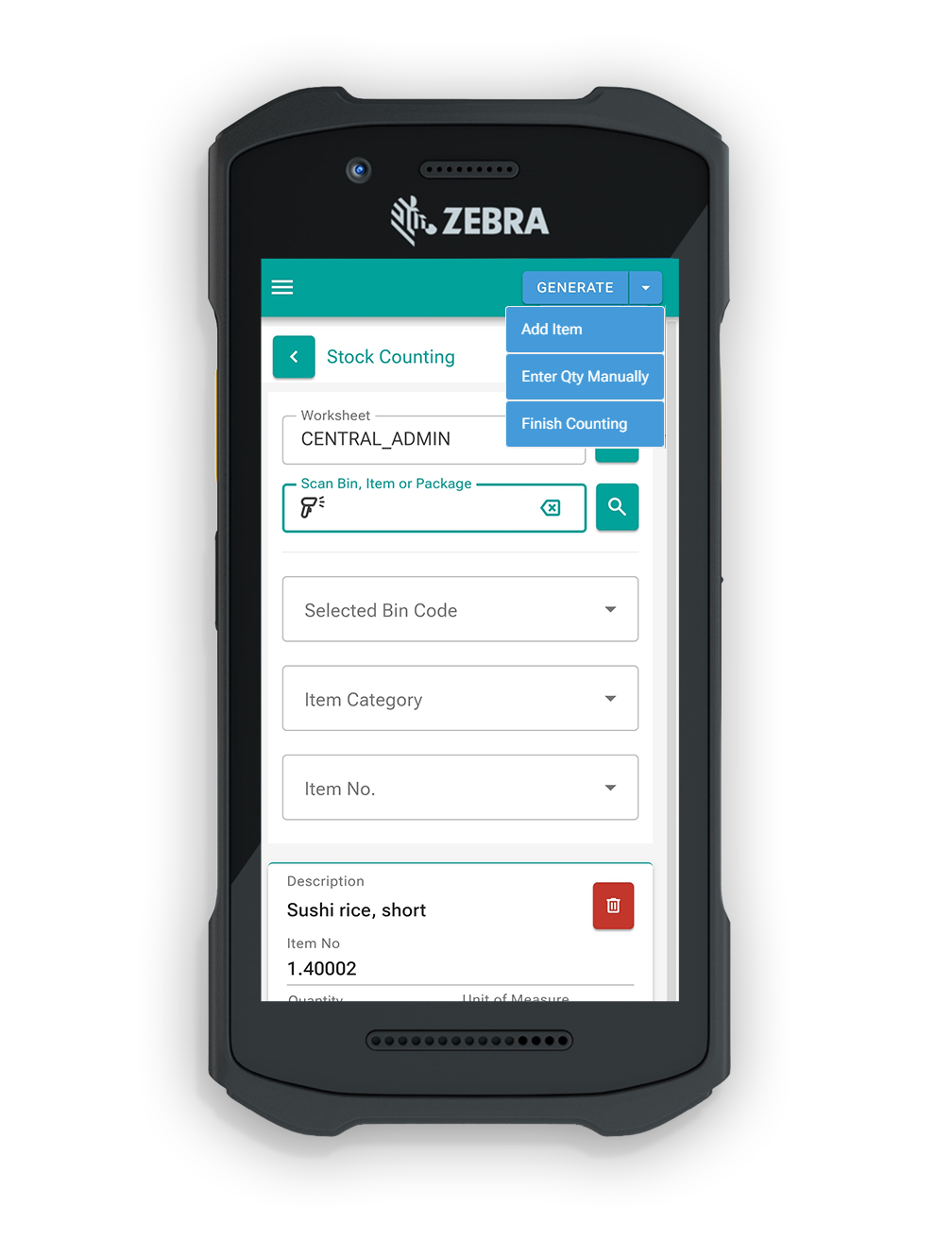
Selection requirement
The action can only be used when a line is selected.
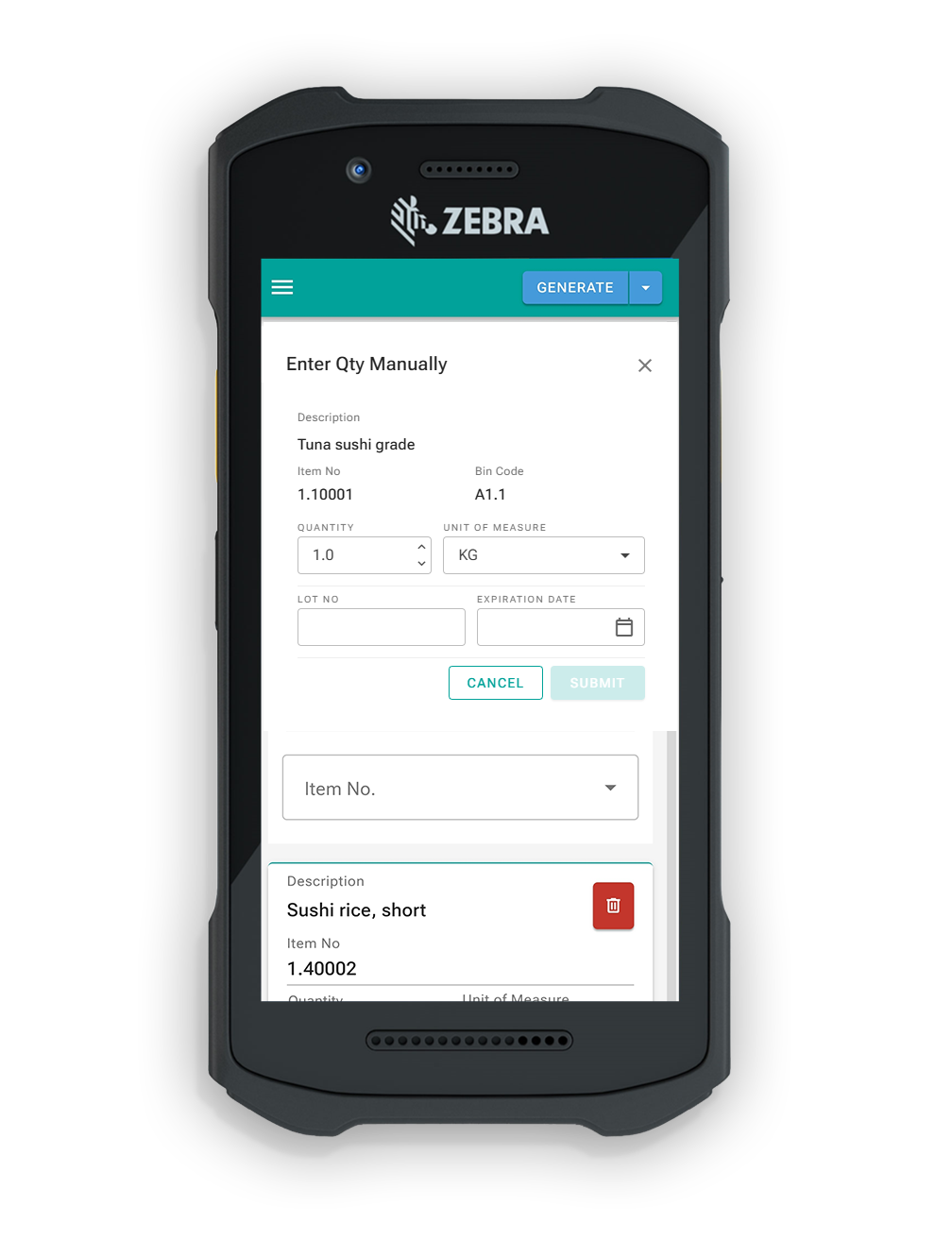
When the user clicks Enter Qty manually for a selected line, a popup is shown with the following information and fields:
- Selected Item
- Selected Bin
- Quantity
- Unit of Measure
- Lot No.
- Expiration Date
¶ Add Item to Stock Counting Manually
The implementation is intended to support warehouse stock counting operations where the user needs to manually select an item and create the corresponding physical inventory journal entry using the currently selected bin and location.
It simplifies stock counting when the item is known, but no label scan is required or available. It reduces dependency on scanning and provides a controlled way to add an item directly into the stock counting process.
The button named "Add Item" is located in the dropdown menu between:
- Generate
- Finish Counting
The button works only when a bin is selected.
Item Selection Popup
When a bin is selected and the user clicks Add Item, an item selection list is opened.
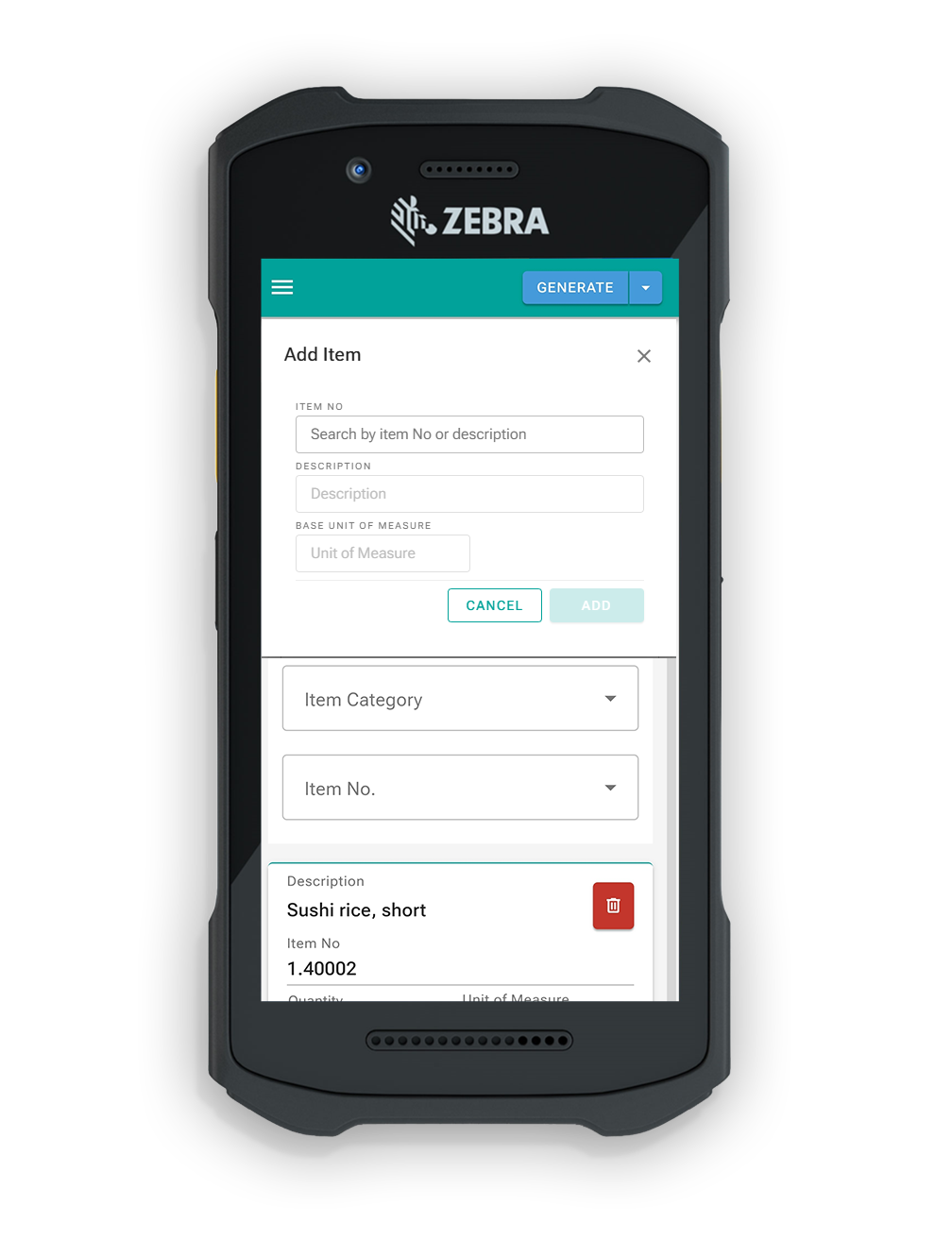
The Add Item action triggers the Calculate Inventory process with the following rules described in the work item:
- Posting Date and Document No. are assigned the same way as currently implemented
- If physical inventory journal lines already exist, the new item is added using the same posting date and document no.
- No. is the selected item number
- Location Code is the location the user is logged into in Freshlot
- Bin Code is the selected bin
¶ Stock Counting Logic
1. Stock counting uses the Physical Inventory Worksheet in Business Central.
2. When you log into Freshlot and start stock counting, an Item Journal Batch is automatically assigned to you. This batch is where your counted items will be recorded, organized by bins.
3. The Item Journal Batch is auto-generated and linked to your user account. You can also add a “Reason Code” to explain why the adjustment is happening (e.g., damage, discrepancy). This reason will be stored with the warehouse entry.
4. Your location has the required setup completed before you start. This means that the configuration in Business Central is set up and ready for stock counting.
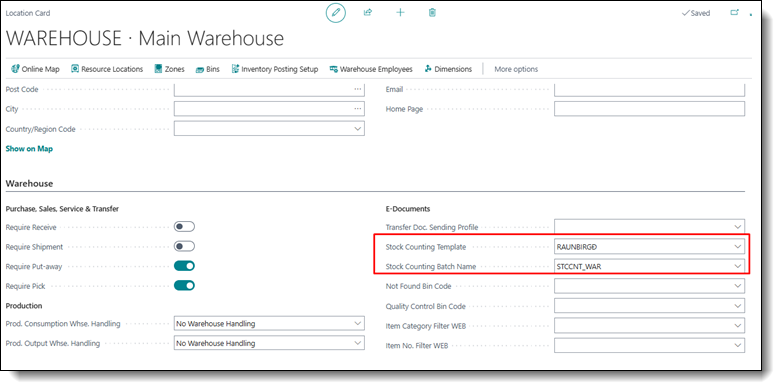
5. Multiple users can work on the same journal if needed. You can choose between different batches:
5.1. Personalized batch (your own);
5.2. Main batch (set as a template in the Location Card).
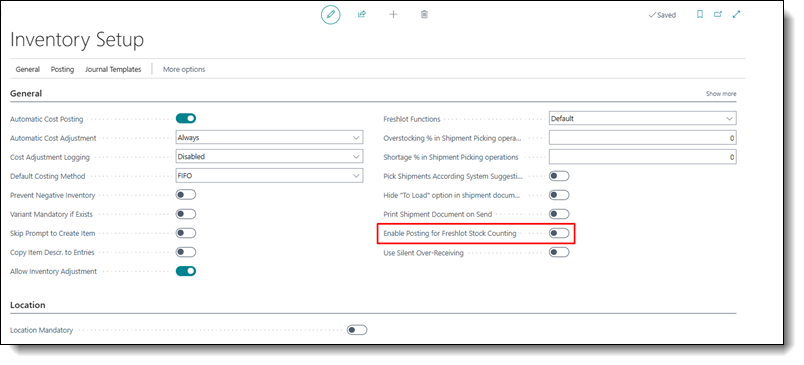
6. By default, warehouse workers cannot post stock counting results and a back-office user must post the results in Business Central. However, if enabled in Inventory Setup, warehouse workers can post results directly from the warehouse.
6.1. Global Setup in Inventory Setup may be turned off, but enabled in Location Card, thus allowing posting only in specified location.