¶ Stock Request Role
Provides a user and mobile-friendly interface to interact with store stock requests utilizing LS retail Store inventory worksheets.
¶ Highlights:
- Automated Store/Location assignment based on workstation IP
- LS Nav inventory worksheet integrated
- Adaptive item arrangement, keeps your frequent items upfront
¶ Worksheet Setup
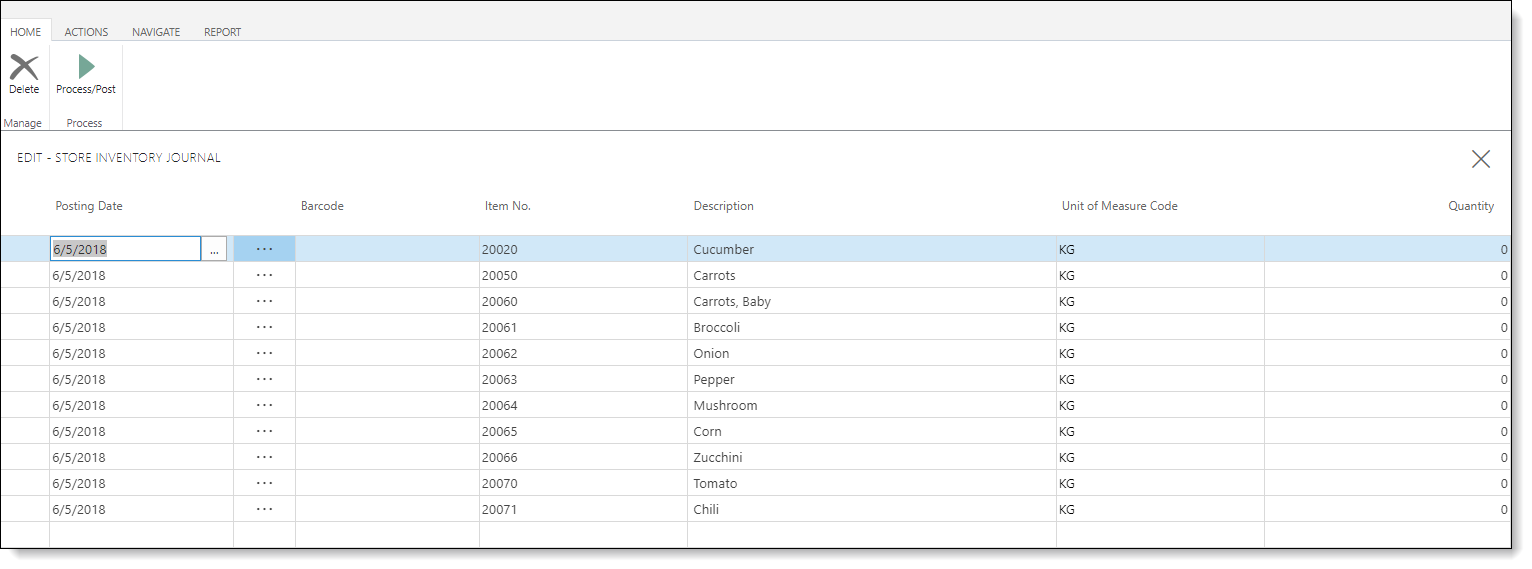
Each department or division's stock request sheet is administered in Nav under Store inventory worksheets, where the worksheets label is set along with store and location association.

Products that should be available on the stock request worksheet for the department must be added to the worksheet and will appear under the “Recurring Items” tab in the stock request role. Further more product group filters can be applied to individual worksheets.
¶ Login and Location assignment
Stock request role login screen on a mobile device.
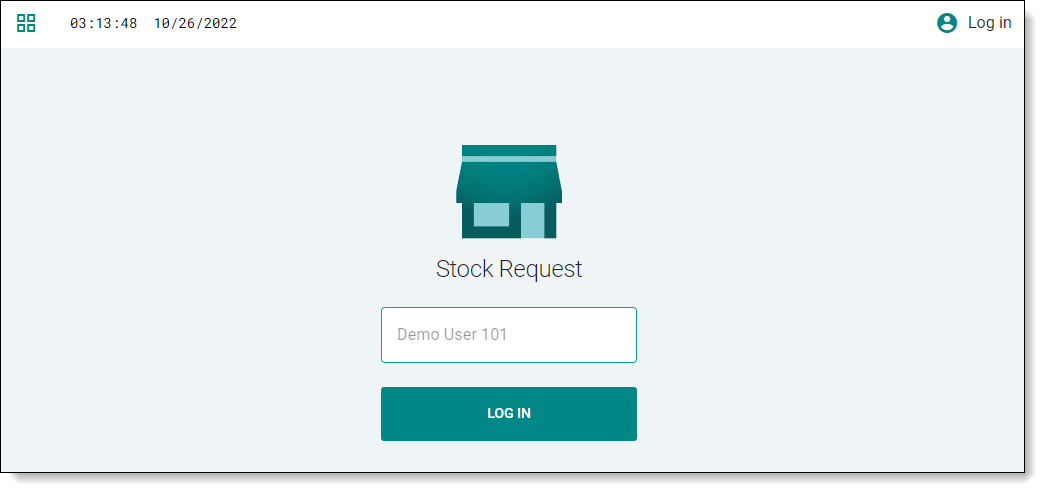
Location assignment is handled by IP whitelisting located on the store card, providing added access limitation and automating the location selection. The employee’s login and any associated detail such as first and last name utilize the existing LS Retail Staff ID so no secondary access or user management process is required.
¶ Operation
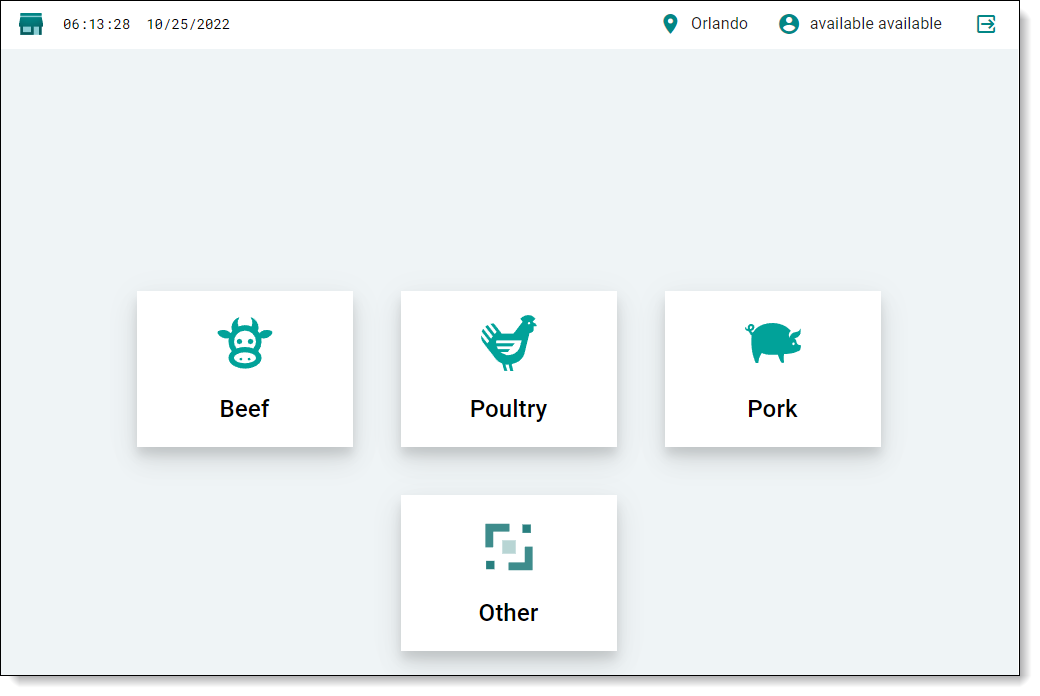
After logging in the user is presented with department selection, based on the available Store inventory worksheets. Selecting one of the available departments brings the user into the stock request interface.
In this list view items can be requested, the list re-arranged to push products to the top of the queue, and entries edited/updated/canceled. On a mobile-based browser, each of these actions is accessed by swiping the item to the left to reveal the actions menu.
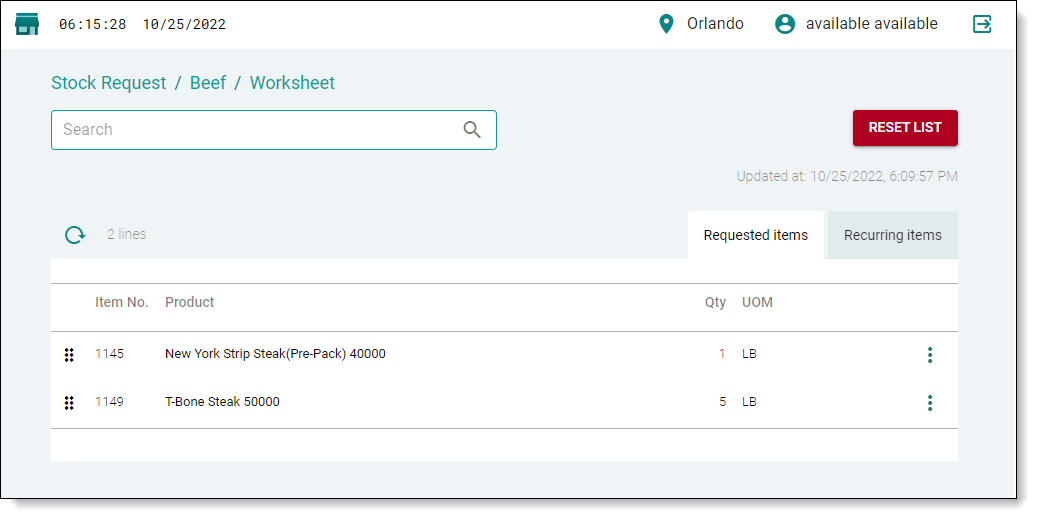
For desktop users, the same actions are reached through the item lines burger menu. Also, You can also reset the list by pressing "Reset List" button, marked red.
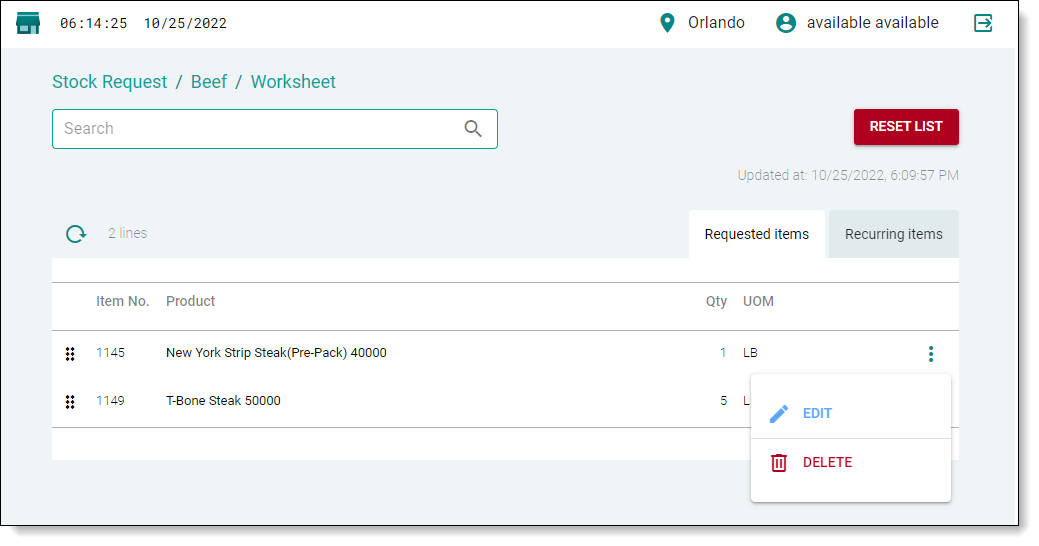
Clicking/selecting a line item either directly or by pressing edit on a previously created entry will bring the user to the request entry view where the quantity and unit of measure can be selected, once the input has been completed, hit ok and the product will be added to the bottom of the stock request list.
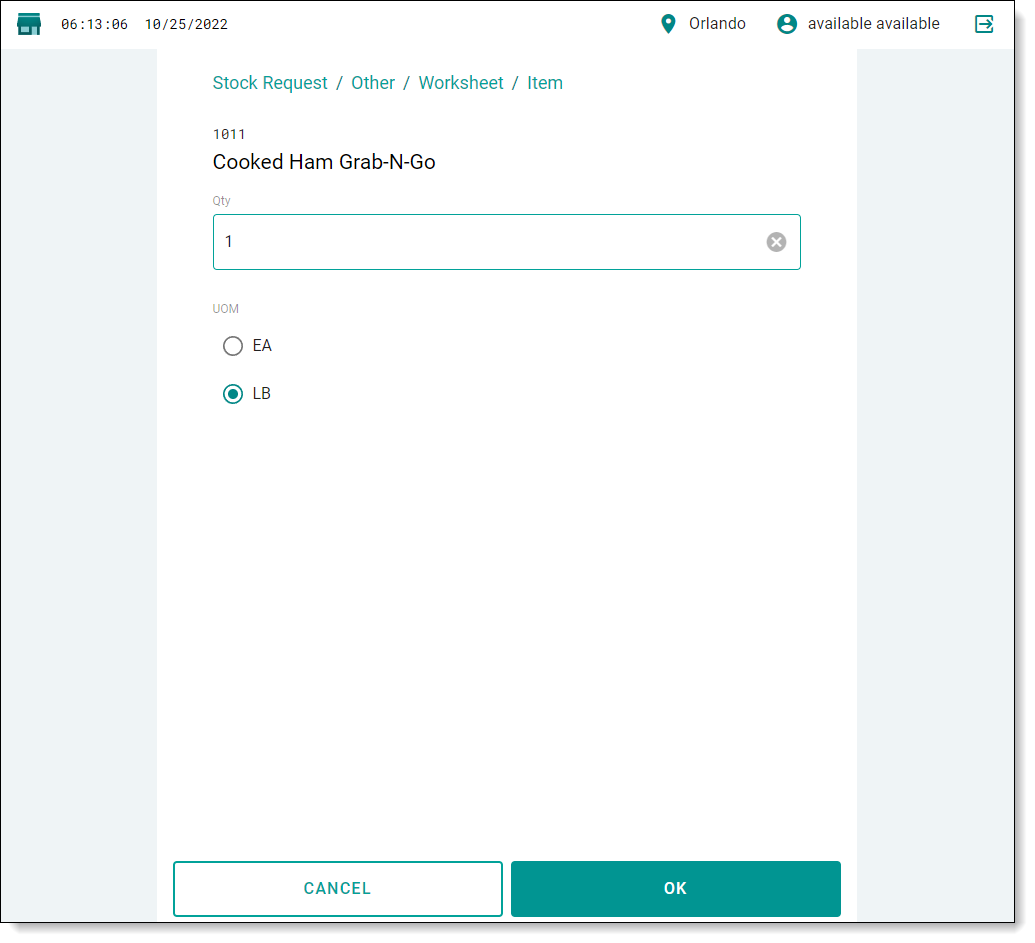
Note that the units of measures available for each product line are dictated by the items configured values in Nav.